Users, administrators and permissions: who does what in your panel
Everyone with an account on your site, from a shopper to a colleague, is on one list. What differs is their role and permissions: a shopper has no role and never sees the admin panel, while an administrator sees the panel but only the parts their groups allow.
1. The users list
Under People → Users you see every account with its mobile number, role, wallet balance and join date. You can search and filter it, export it to Excel, or send a notice to a group of people. Add user creates an account by hand; it needs a mobile number or an email, and each can be used only once on your site.
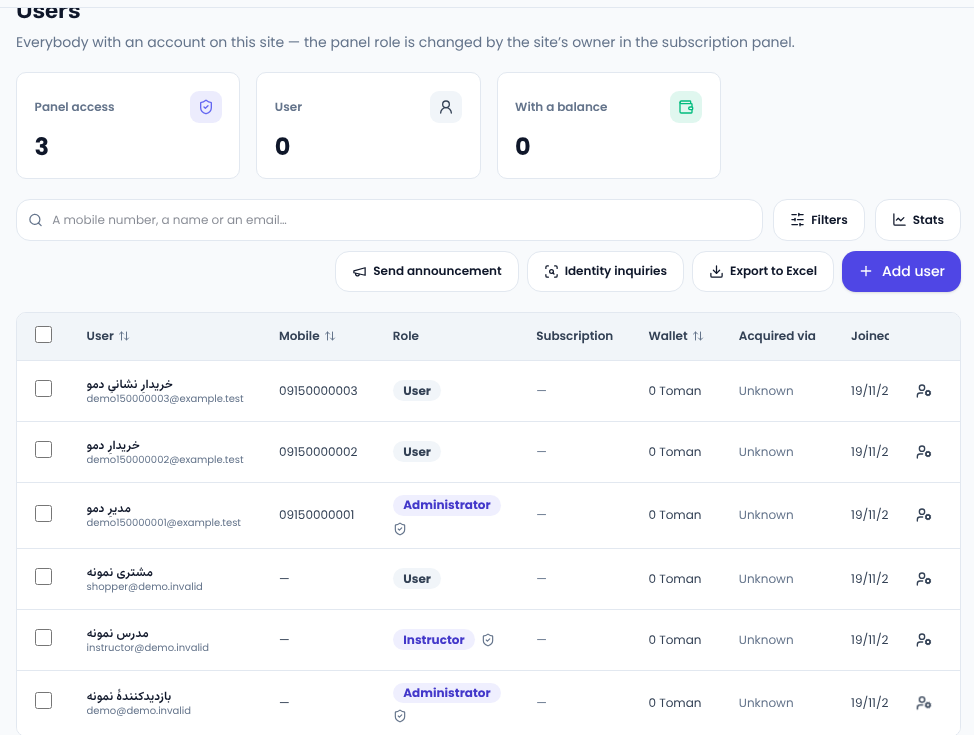
Someone with a paid order or a wallet balance cannot be deleted, and Sima says why, because deleting the account would also wipe their money history.
2. Appointing an administrator
Administrators have a page of their own: Settings → Administrators. Click Appoint an administrator, then either find somebody already on the site by their mobile or email, or create a new account. Then tick their groups. A customer who becomes an administrator keeps the same account; no second account is made.
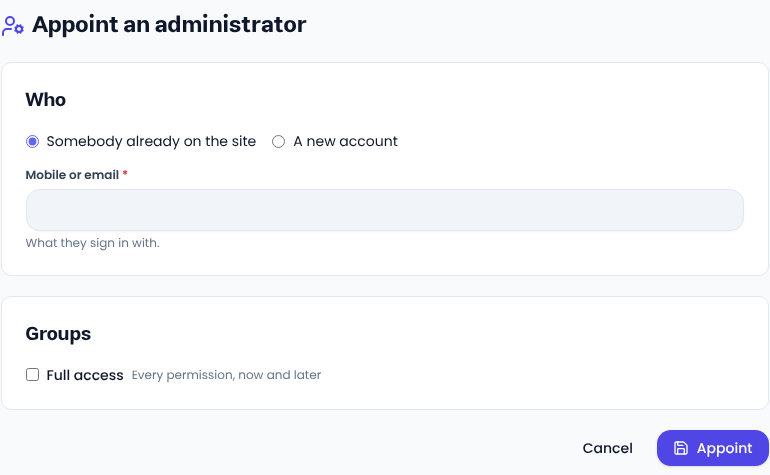
An administrator in no group reaches no page of the panel. No administrator can change their own groups or take the administrator role away from themselves.
3. User groups
Under People → User groups, click New group, name it, for example Writer or Support, and tick its permissions. Permissions are grouped by area: content (view, write, publish), SEO, support, users, site settings and every feature your site has. An administrator can be in several groups and holds what all of them grant.
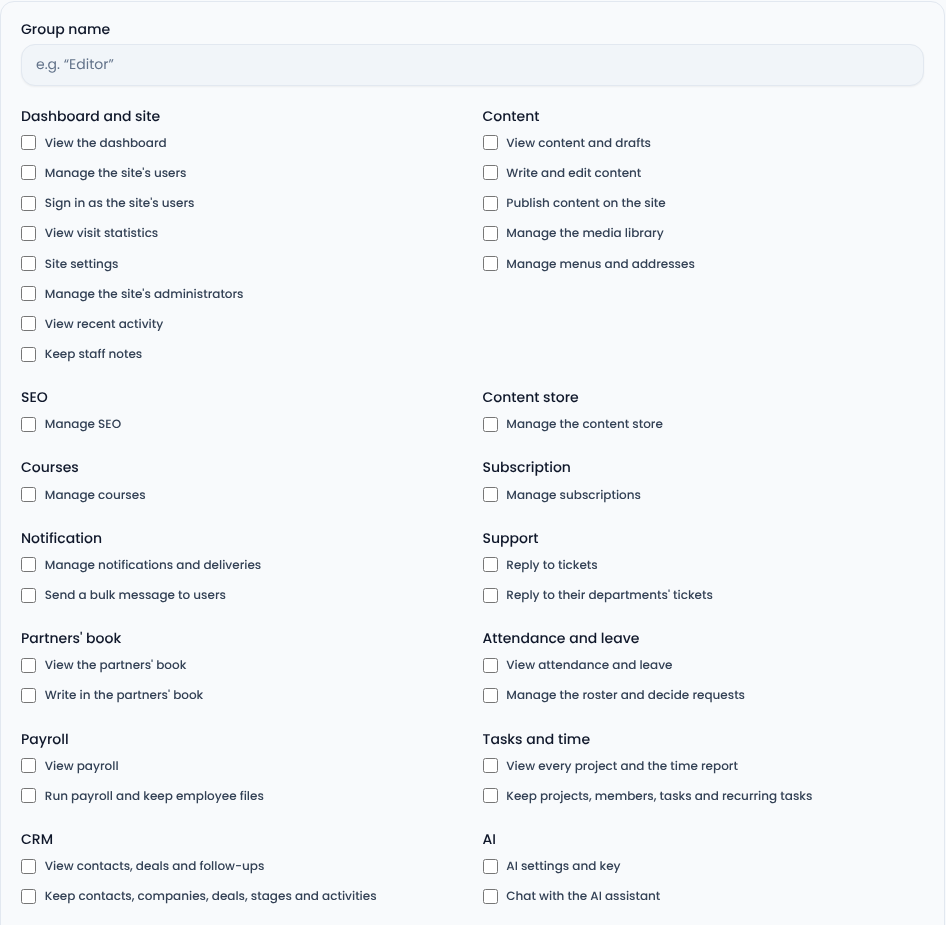
For a writer who drafts posts that you publish, for example, give View content and drafts and Write and edit content, and leave Publish content on the site unticked.
4. The Full access group
Every site has one built-in group, Full access, that holds every permission, including those of features added later. It cannot be renamed, edited or deleted. Only one of its members or the site's owner can add someone to it or remove someone from it, and its last member cannot be removed; add another person first.
The site's owner always holds every permission, and no group reduces that. An administrator with fewer permissions cannot change the password or details of, or delete, someone who holds more.
5. Sign-in and registration
Under Settings → General settings → Sign-in and registration, choose what people sign in with (mobile number, email or both) and how (a one-time code, a password or a sign-in link). If you switch off New user registration, only people who already have an account can sign in. Sign-in with Google and GitHub is here too.
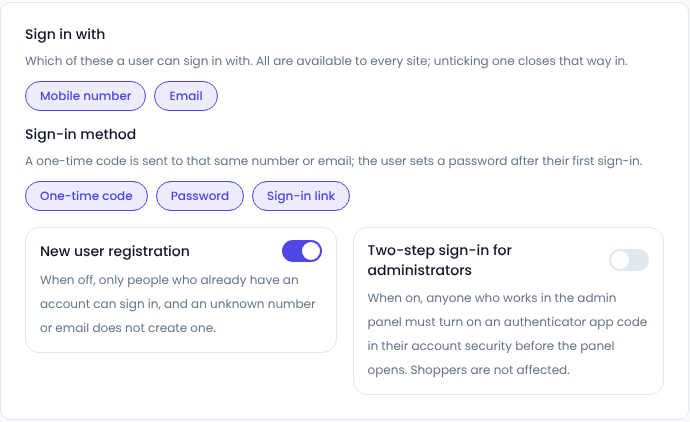
For more security, switch on Two-step sign-in for administrators. From then on, anyone who works in the panel must first turn on an authenticator app code (such as Google Authenticator) in their account security before the panel opens. Shoppers are not affected. You need two-step sign-in yourself before you can switch it on, so you cannot lock yourself out.
Common questions
Can a customer reach the panel by signing up?
No. An account made by signing up holds no role, and the admin panel does not open for it.
Does switching off user sign-in lock me out?
No. You reach your panel through site management, which this switch does not affect.
Comments
Sign in to leave a comment.
Sign inLoading…