Selling online courses: sections, lessons, instructors and their share
With Courses you can sell video or audio teaching as sections and lessons. A lesson plays only inside your site and only for someone who has bought the course, and if other people teach on your site, each instructor's share of a sale is worked out for you.
1. Create a course
Under Courses → Courses, click New course. Fill in the title, the page address, the instructor, the category, the level (Beginner, Intermediate or Advanced), the description and a cover image. Then choose how the course is held: Pre-registration to sell before it starts, Running or Held.
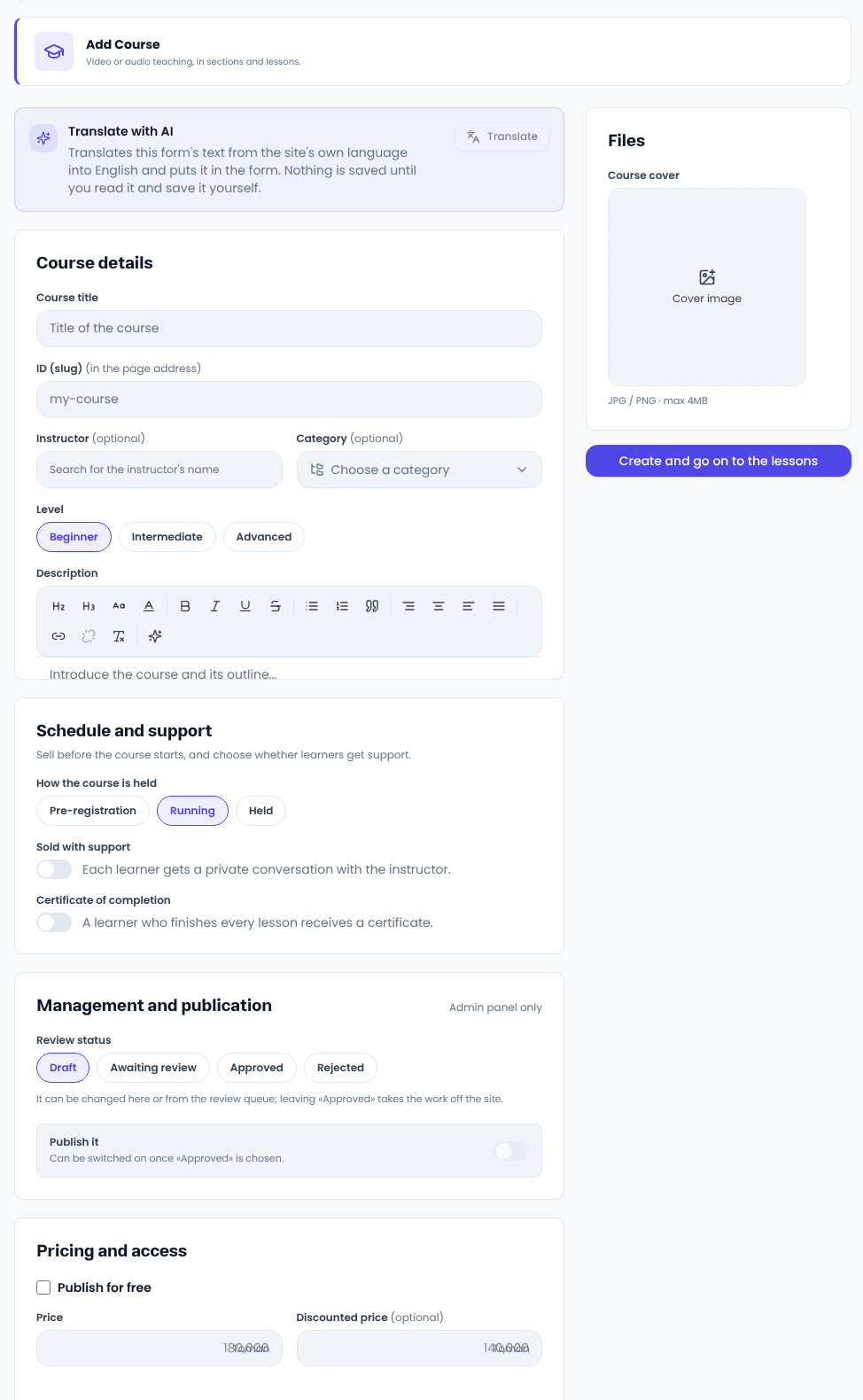
The same form has two switches. Sold with support gives each learner a private conversation with the instructor, and Certificate of completion gives a certificate to anyone who finishes every lesson.
2. Price, discount and subscription
Enter the price in toman, and a discounted price if you want one; the discounted price must be lower than the price. For a free course, tick Publish for free. If you sell a subscription plan, Included in the premium subscription opens the course to subscribers without a separate purchase.
3. Sections and lessons
After Create and go on to the lessons, use Sections and lessons. First make the sections with their order, such as Getting started and The language. Then add lessons under each one: title, order, description and a video or audio file. Once the file is processed, the lesson's length is taken from the file itself, and the course's lesson count and total length are worked out for you.
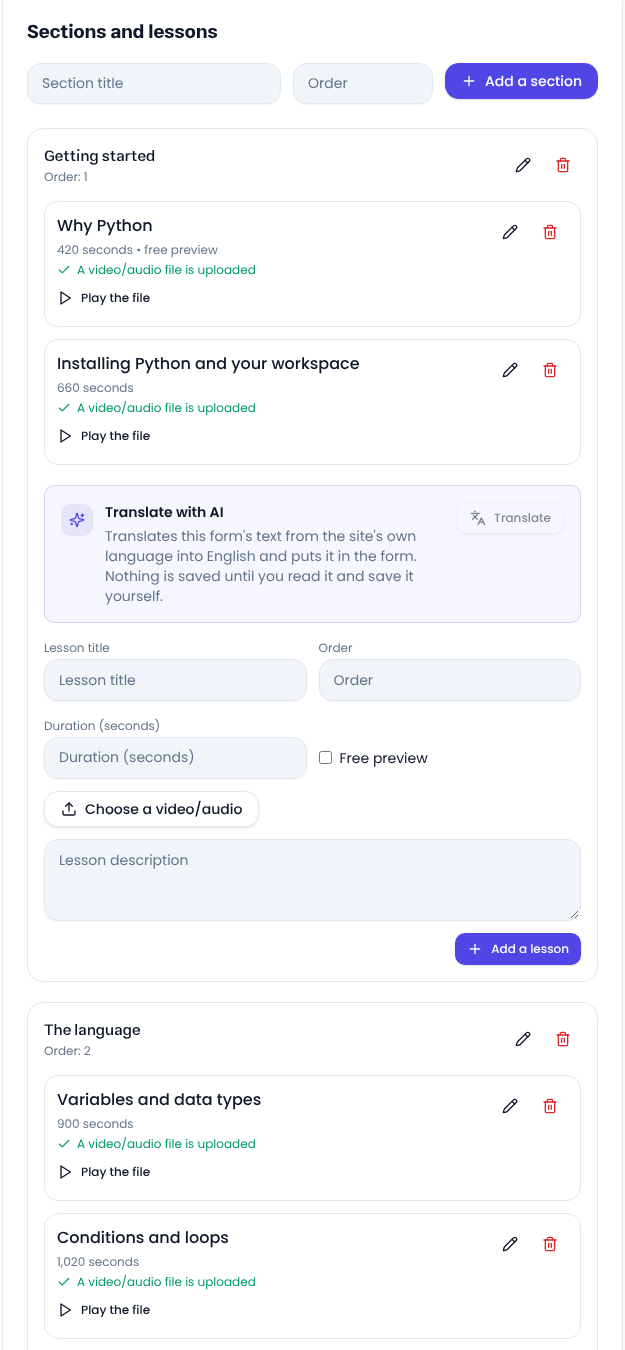
Ticking Free preview opens a lesson to everyone, so a visitor can try before buying. The outline, with lesson titles and lengths, is public, but every other lesson plays only for a buyer, a subscriber (when the course is in the subscription), the course's own instructor and the site's managers. The file's address never appears on the page.
4. Review and publishing
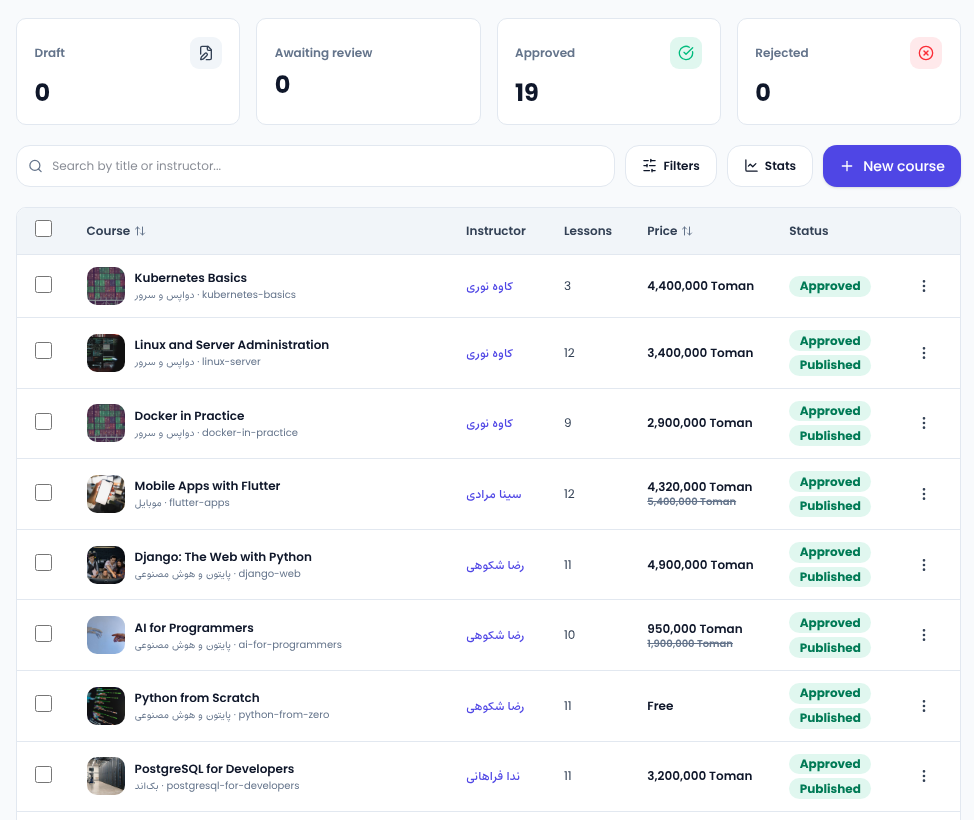
A course is always in one of four states: Draft, Awaiting review, Approved and Rejected. The instructor sends the course for review, and you approve it or reject it with a note; approving also publishes it. The Publish it switch works only on an approved course, and a course that is not both approved and published does not show on the site.
A course can be sent for review only when it can be sold: it has a title and a category, a price above zero unless it is free, and at least one lesson with a file. If something is missing, Sima lists everything at once and names the lessons without a file.
5. Instructors
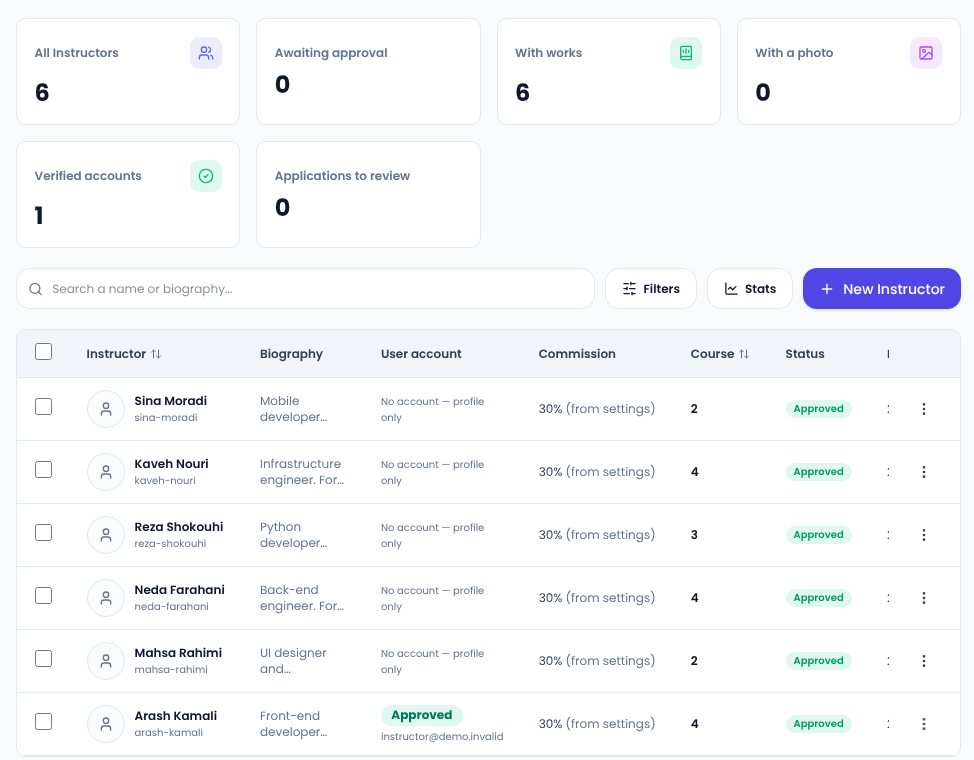
Under Courses → Instructors you can create an instructor as just a name on the course, with no account behind it. If an instructor should build courses themselves, they apply to teach on your site; once their identity is verified and they accept the instructor contract, their instructor panel opens, and there they see only their own courses, earnings and payouts. You can also link a login to an instructor you created.
An instructor may propose a new category; it waits under Course categories until you approve it and does not show on the site before that. A course that has buyers cannot be deleted. If you no longer want to sell it, unpublish it, and its buyers keep their access.
6. Commission and instructor payouts
Under Settings → General settings → Contributors and commissions, set two numbers: Course sales fee (percent), which is your site's share of each sale, and Days before a course sale can be withdrawn (7 by default). Each instructor can also have a rate of their own.
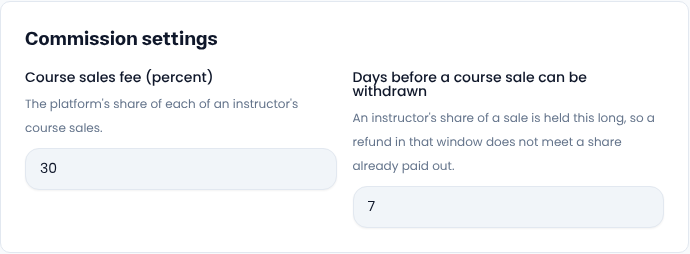
From each sale, the amount actually paid less the commission goes to the instructor; a course sold at its discounted price pays the share on that price. The share stays pending for the holding days, so a refund in that window never meets money already paid out. After that the instructor can ask for a payout up to their balance (once they have added a bank account), and you approve it, mark it paid or reject it under Finance → Instructor settlements. Changing a rate does not re-price earlier sales.
7. A watermark on the video
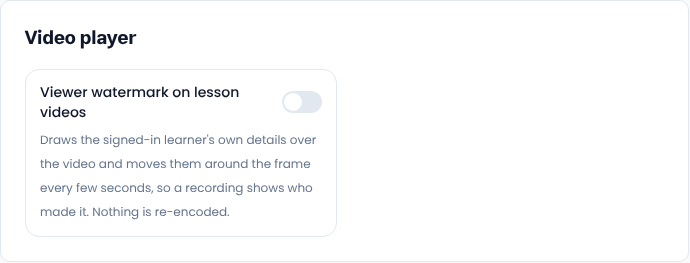
Under Settings → General settings → Courses, turn on Viewer watermark on lesson videos. The learner's own mobile number or name is drawn over the video and moves every few seconds, so a recording shows whose account it came from. Nothing is re-encoded. It cannot stop screen recording, but it deters it, and if someone removes the mark from the page, playback stops.
Common questions
Why doesn't my course show on the site?
It has to be Approved and have Publish it switched on.
Does a learner lose their place in a lesson?
No. Their position in each lesson and the lessons they finished are saved, and course progress is the share of lessons finished.
Can only buyers leave a review?
Yes, on a paid course. On a free course, anyone can.
Comments
Sign in to leave a comment.
Sign inLoading…