Moving a WordPress site to Sima with the WordPress Bridge
If your site runs on WordPress today, you do not have to rebuild everything or switch WordPress off overnight. Sima's WordPress Bridge reads your posts, pages, menus, comments and WooCommerce shop from your WordPress and shows them in a Sima design. WordPress stays on the same host, and while the bridge is connected you keep editing there. Whenever you are ready, one button sets WordPress aside and everything belongs to your Sima site.
The WordPress Bridge is a plan feature. If you do not see Settings → WordPress Bridge in your site's panel, your plan does not include it.
1. Install the SimaCMS connector on WordPress
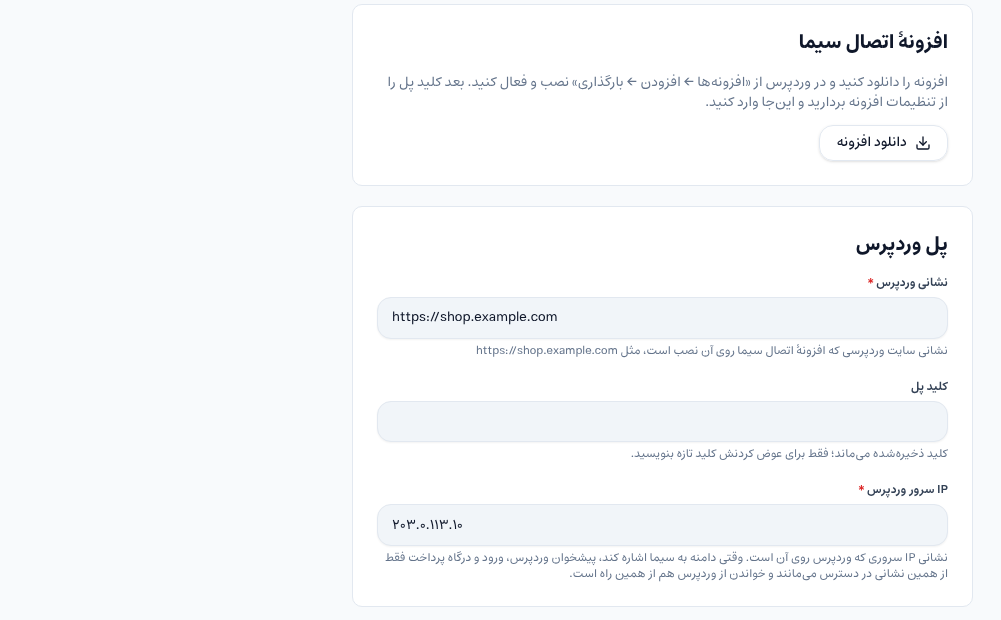
In your Sima site's panel, go to Settings → WordPress Bridge and press Download the plugin in the SimaCMS connector plugin card. In the WordPress admin, install and activate the zip under Plugins → Add New → Upload Plugin. Then copy the bridge key from the plugin's settings in WordPress.
The plugin only reads, and it changes none of your WordPress settings. When a newer version is out, WordPress only tells you; it never installs it on its own.
2. Connect WordPress
On the same page, fill in three things at the bottom of the form:
- WordPress address: the full address of the WordPress site, like
https://shop.example.com - Bridge key: the key you copied from the plugin.
- WordPress server's IP: the IP address of the host WordPress runs on. Once your domain points at Sima, the WordPress admin, the login page and returns from the payment gateway stay reachable through it. Get it from your hosting panel or your host's support.
Then press Connect. The key is not shown again once saved; type a new one only when you want to change it.
3. Choose what is read
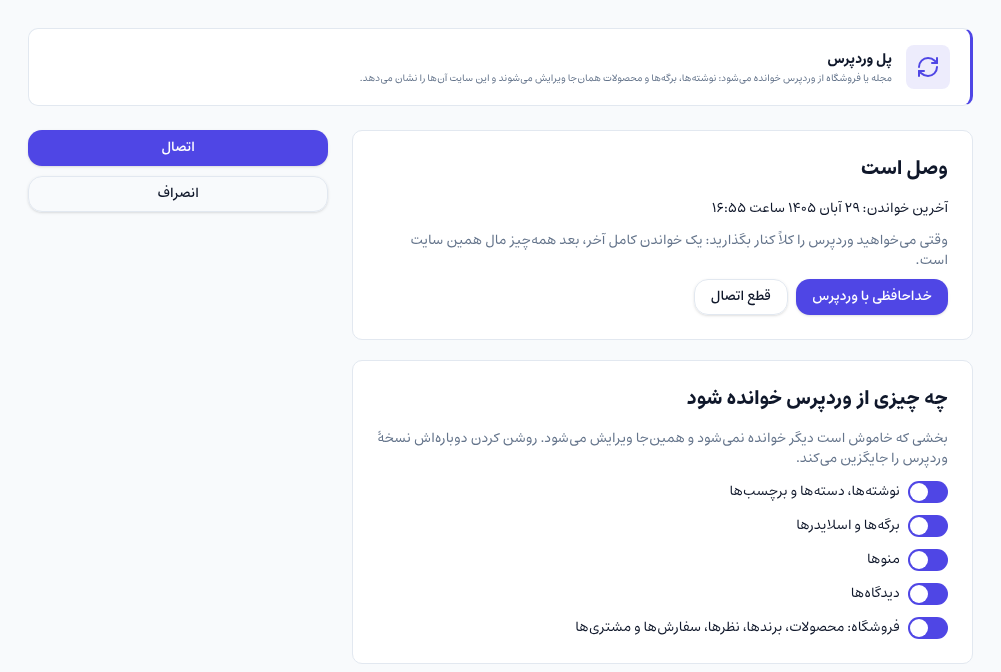
Once connected, the top of the page says Connected with the time of the last read. In What is read from WordPress, each part switches on and off on its own: posts, categories and tags; pages and sliders; menus; comments; and the shop (products, brands, reviews, orders and customers).
A part switched off is no longer read from WordPress and from then on is edited in the Sima panel. For example, you can switch menus off and build a new menu in Sima while products keep coming from WooCommerce. Switching a part back on puts WordPress's copy back in place of Sima's.
4. Preview the site and connect your domain
From the moment the bridge connects, your Sima site is open on its temporary address (like shop.simacms.ir), so you can look over everything calmly while your domain and WordPress stay untouched. When you are happy, point your domain's DNS at Sima. From then on visitors see the Sima site, and you and your team work in the WordPress admin as before.
While the bridge is connected, orders are placed in your own WooCommerce and WooCommerce works out the cart total. So plugins that affect prices, discounts, shipping or tax keep working. A plugin that only changes how a page looks does not show on the Sima site.
5. Leave WordPress
Whenever you want to set WordPress aside for good, press Leave WordPress on the same page. WordPress is read once more in full, then the bridge disconnects by itself. From then on posts, pages, products, orders, users and media belong to this site and are edited in the Sima panel. WordPress and its host are left as they are; switch them off whenever you like.
Disconnect is not the same as leaving: it only stops reading, and the site keeps what WordPress last sent.
What comes across, and what to watch for
- Addresses: posts, pages, categories and products keep their addresses, so your Google rankings are not lost. If your WordPress used dated or plain permalinks, add redirects for the old addresses.
- Elementor pages: they become Sima blocks. Look over your important pages once after the move; a widget with no equivalent needs replacing in Sima's page builder.
- Sliders: Slider Revolution sliders come across too, but placing them on a page is up to you.
- Users and roles: a WordPress administrator gets every permission in Sima but does not become the site's owner; shop managers and editors become managers, and authors get view access.
- Passwords: WordPress passwords cannot be transferred. Users sign in with a one-time code or Forgot password.
- Password-protected posts: WordPress does not hand over their text; only their title and address arrive, as a draft, and you copy the text across yourself.
- Stock and paid orders: stock is read from WordPress only the first time; after that Sima's sales decide it. An order paid on Sima is not changed by a later read.
Common questions
Do I have to change my host?
No. WordPress stays on the same host and only your domain's DNS moves to Sima. Drop the host whenever you like, after leaving WordPress.
While the bridge is connected, can I edit a product or post in the Sima panel?
A part read from WordPress is edited in the WordPress admin, and the change shows on the Sima site seconds later. To start editing a part in Sima right away, switch it off under What is read from WordPress.
Do my WordPress theme and design plugins come across?
No. The site is shown with Sima's designs and page builder; your content and data move, not the WordPress theme.
Comments
Sign in to leave a comment.
Sign inLoading…