Connect your site to Google Search Console
Google Search Console is Google's own free tool that shows how your site does in search: which pages Google has indexed, which phrases people find you by, how often your result was seen and clicked, and which pages have problems. To use it you first prove the site is yours. On Sima that takes one code, with no files or templates to touch.
1. Add the site in Search Console
Go to search.google.com/search-console and sign in with your Google account. Choose Add property and pick URL prefix. Enter the site's full address with https://, exactly as the site opens, such as https://example.com.
2. Get the verification code
Google offers several ways to verify ownership. Open HTML tag. It shows you a tag like this:
<meta name="google-site-verification" content="AbC123…" />
Copy the whole tag. Do not press Verify yet.
3. Put the code in Sima
In your site's panel go to SEO → SEO settings, and under Search engine verification paste the tag into Google Search Console verification code. You do not need to pick out the content value yourself; Sima does it. Press Save changes.
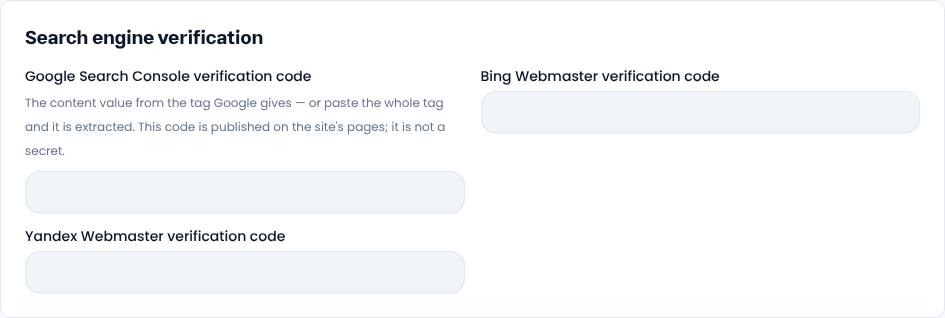
This code is not a secret: it is published on the site's pages so Google can see it. Read more about this method in Google's help on verifying ownership.
4. Verify and submit the sitemap
Go back to Search Console and press Verify. If Google says it could not find the code, wait a few minutes and try again. Once verified, open Sitemaps in the left menu, type sitemap.xml in the box and press Submit. Sima builds the sitemap itself, and every new page you publish joins it on its own.
The first figures take a few days to appear in Search Console. For a new page you want seen sooner, enter its address in the box at the top of Search Console (URL inspection) and choose Request indexing.
5. Bing, Yandex and Google Analytics
Beside Google's code there are boxes for the Bing Webmaster and Yandex Webmaster codes, which work the same way. In Bing Webmaster you can also import the site straight from Search Console with no separate code.
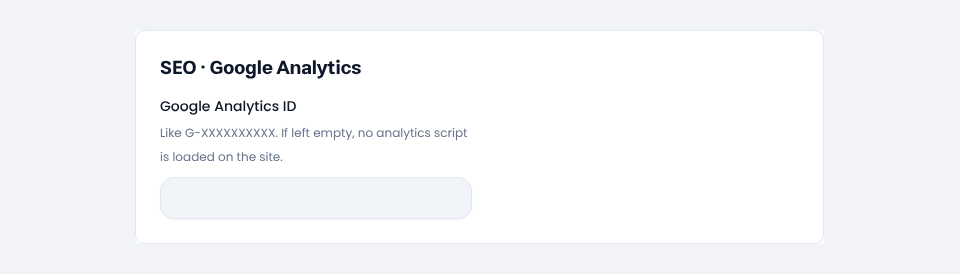
If you want visit statistics from Google Analytics too, put the measurement ID (like G-XXXXXXXXXX) in Google Analytics ID under Settings → General settings → External services. While that box is empty, no analytics script is loaded on the site.
Common questions
My site does not have its own domain yet. Can I still connect it?
Yes. Add the site's temporary address (such as https://example.simacms.ir) in Search Console. When you connect your own domain, add the new domain the same way.
I chose Domain and it asks for a DNS record. What now?
A Domain property is verified only with a DNS record at your domain registrar. It is simpler to choose URL prefix and verify with the HTML tag as above.
I closed the site to search engines until it is ready. Is that a problem?
While Keep search engines from indexing is on in SEO settings, Google does not index the pages. Switch it off when the site is ready and submit the sitemap again in Search Console.
Comments
Sign in to leave a comment.
Sign inLoading…