How to add a product to your online store
To add a product in Sima you fill in a single page: everything from the name and pictures to the price, stock and shipping lives there, and one button publishes it. This guide goes through it in order.
1. Open a new product
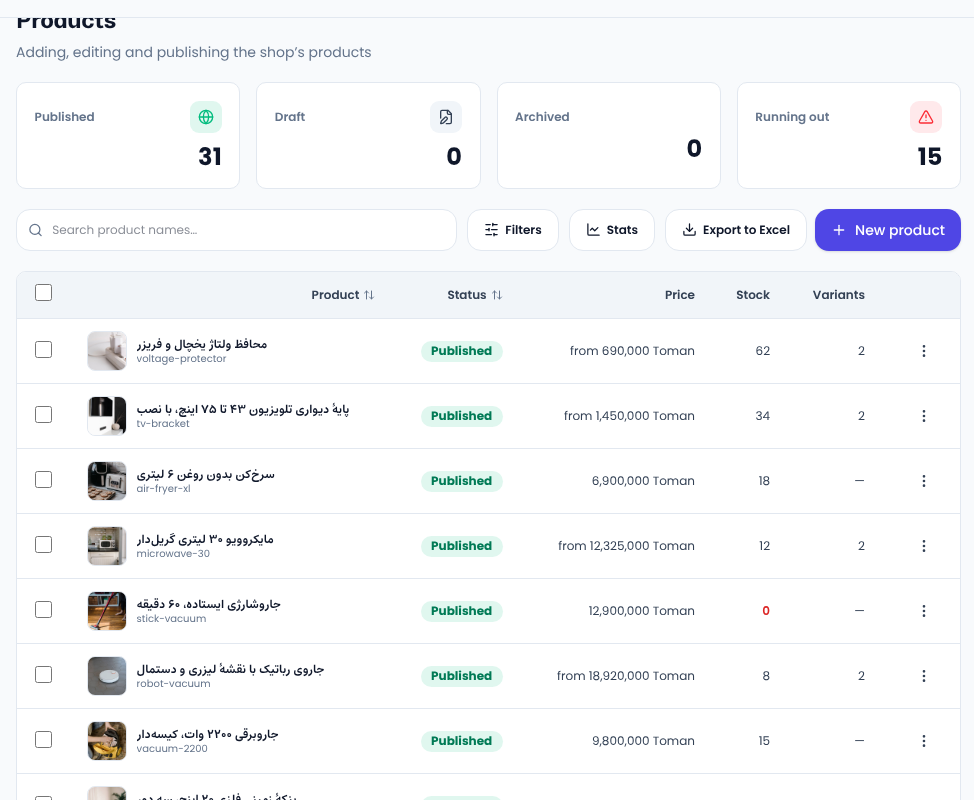
In your site's panel, open Products → Products. You see every product with its status, price and stock. Press New product.
2. Name, summary and description
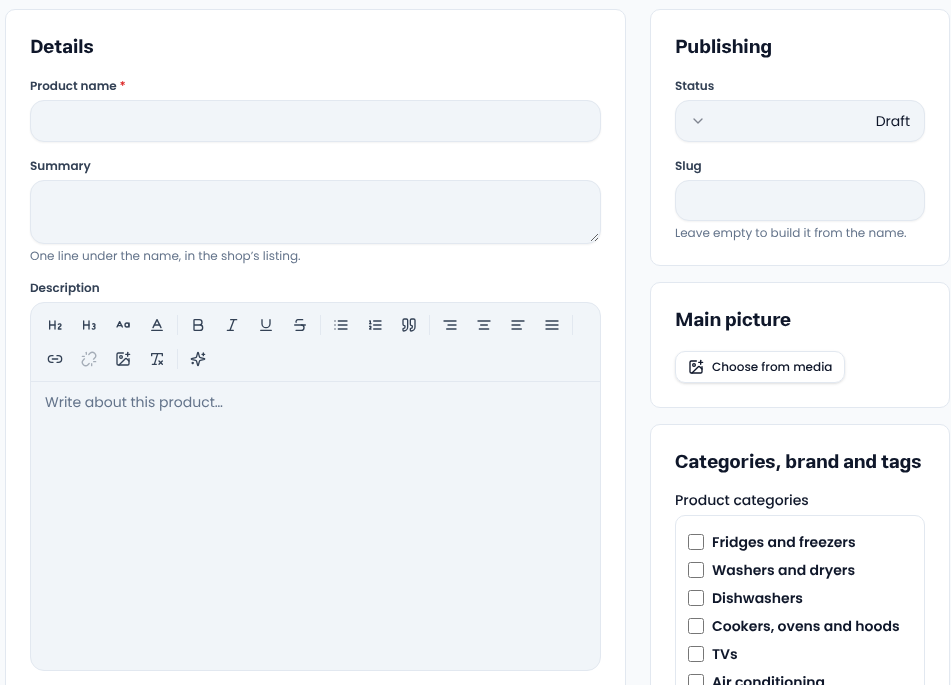
- Product name is the only required field.
- Summary is one short line shown under the name in the shop's listing.
- Description is the full text of the product page and can hold headings, lists, pictures and links.
Leave the Slug empty and the address is built from the name.
3. Picture, category, brand and tags
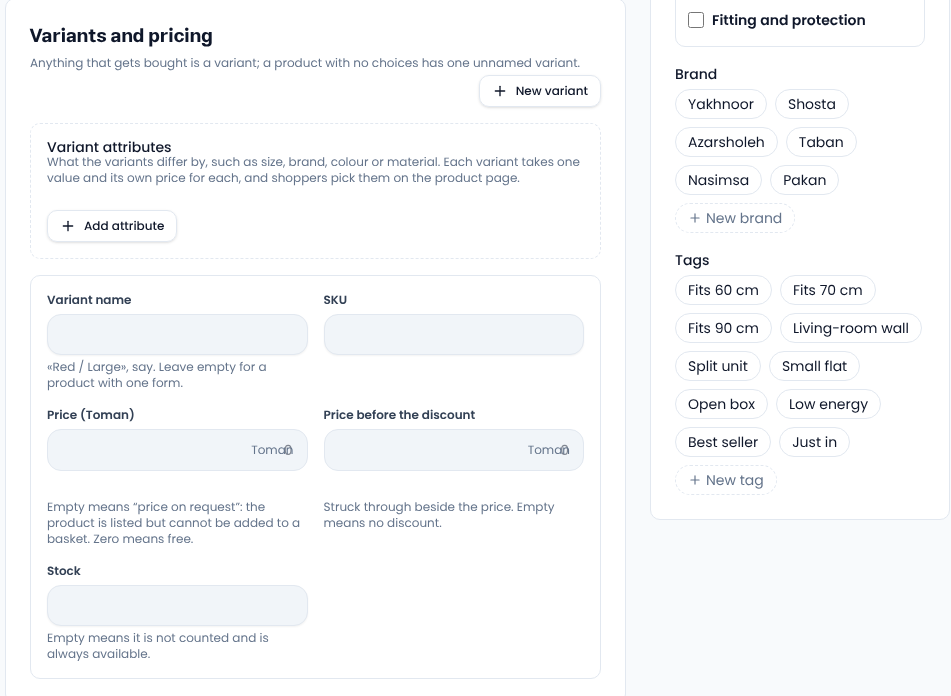
The Main picture appears in listings and at the top of the product page; upload it with Choose from media. Add more pictures in the Gallery. Then tick the product's categories and pick a brand and tags, or create a new one right there.
4. Price, discount and stock
Under Variants and pricing, enter the price. If the item is on sale, put the old price in Price before the discount and it is shown struck through beside the price.
- An empty price means “price on request”: the product is listed but cannot be added to a basket.
- A price of zero means free.
- Empty stock means it is not counted and is always available.
If the product comes in colours or sizes, add variants with Add attribute; there is a separate guide for that in this section.
5. Shipping and downloadable files
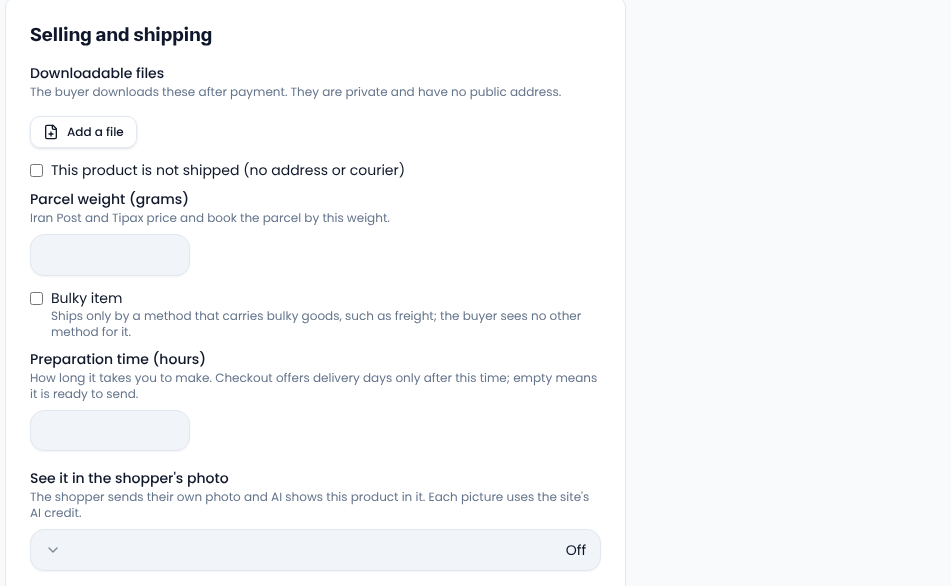
Under Selling and shipping, enter the parcel weight in grams so delivery is priced correctly. Tick Bulky item and only methods that carry bulky goods are offered. If the product is a file, tick This product is not shipped and upload the file; the buyer downloads it after paying.
6. SEO and publishing
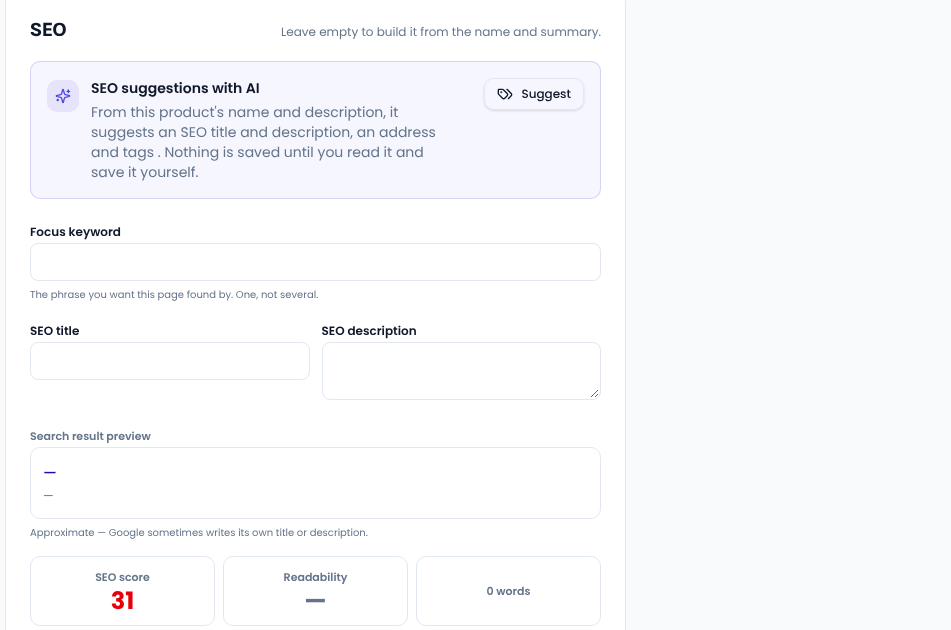
At the bottom, write the focus keyword; the SEO panel scores the page and tells you what is missing. Leave the SEO title and description empty and they are built from the name and summary. Finally set the status to Published and press Publish. Save keeps the product as a draft for later.
Common questions
Can I add many products at once? Yes: upload an Excel file from Products → Product import.
Why can't I see the product on the site? Check its status; drafts and archived products are not shown to shoppers.
Google's guide to product pages in search explains what makes a product page show well in results.
Comments
Sign in to leave a comment.
Sign inLoading…