Building a slider for your front page
20 Nov 20262 min read4 views
A slider at the top of the front page shows a few important messages in turn: this week's sale, a new product or a special service. In Sima you build a slider once and place it on any page you like.
Building a slider
Under Content → Sliders, press New slider, name it (for example “Front page header”) and open it.
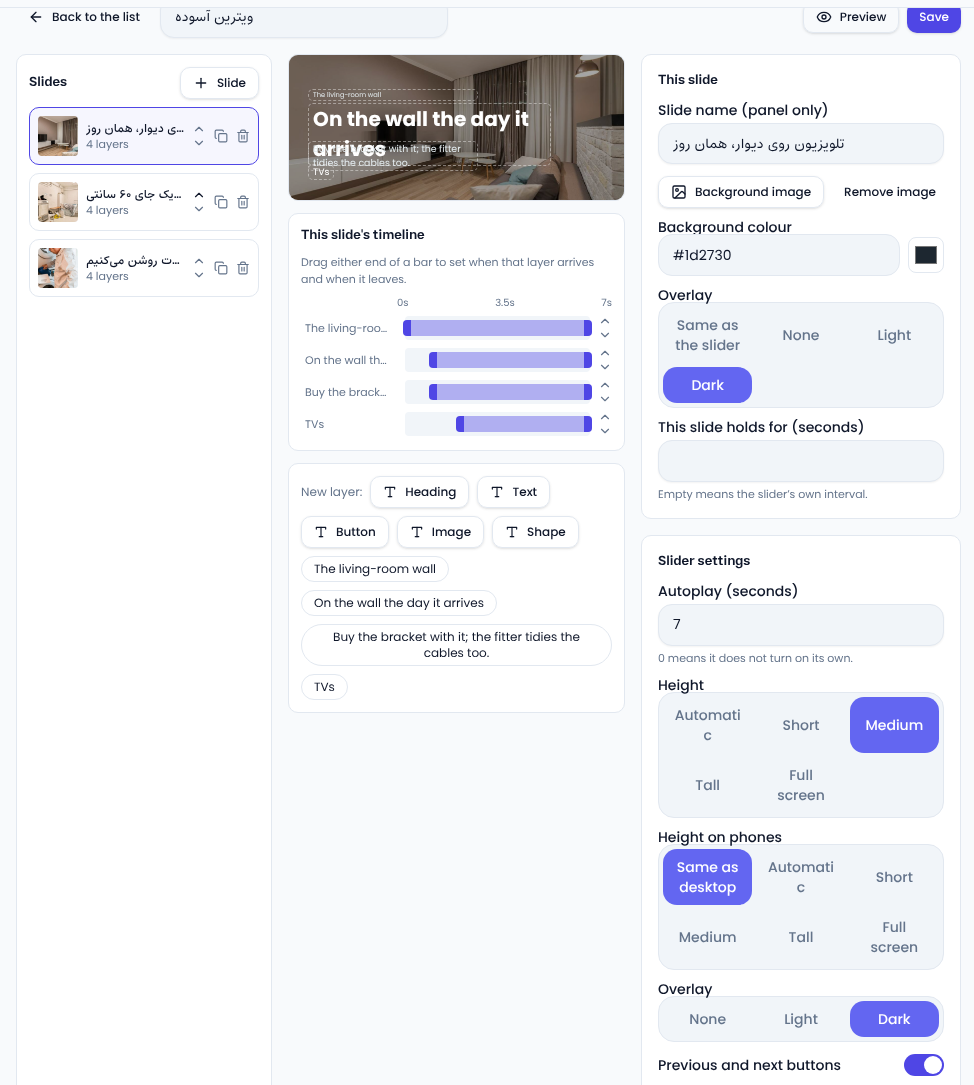
Each slide
- Slide adds a new slide. Reorder with the arrows and copy a slide with the duplicate button.
- Pick a Background image from the media library, or just a Background colour.
- An Overlay (dark or light) keeps text readable over the picture.
- New layer adds a heading, text, button, image or shape; drag them into place in the preview.
- In This slide's timeline, drag either end of a bar to set when that layer arrives and when it leaves.
Slider settings
- Autoplay moves to the next slide every few seconds; 0 means it never turns on its own.
- Height and Height on phones are set apart; a shorter slider usually works better on phones.
- Previous and next buttons, navigation dots and looping back to the first slide each have a switch.
Check it with Preview and press Save.
Placing the slider on a page
Open the page in the page builder, drag in the Slider block and pick your slider. One slider can sit on several pages, and every change shows everywhere.
A few tips
- Three to five slides are enough; few people see the sixth.
- Give each slide one message and one button.
- Put the most important message first.
To keep a slider from slowing the page, see web.dev on Largest Contentful Paint.
Comments
Sign in to leave a comment.
Sign inLoading…