Building your site's menu and submenus
The site menu is how visitors find their way; what is not in it is rarely found. In Sima a menu is a list of links with up to three levels.
The menu list
Content → Menus shows your main menu. At the top are the counts of all links, top-level links, submenus and broken links. Pick another menu, such as the footer menu, from the drop-down beside the search.
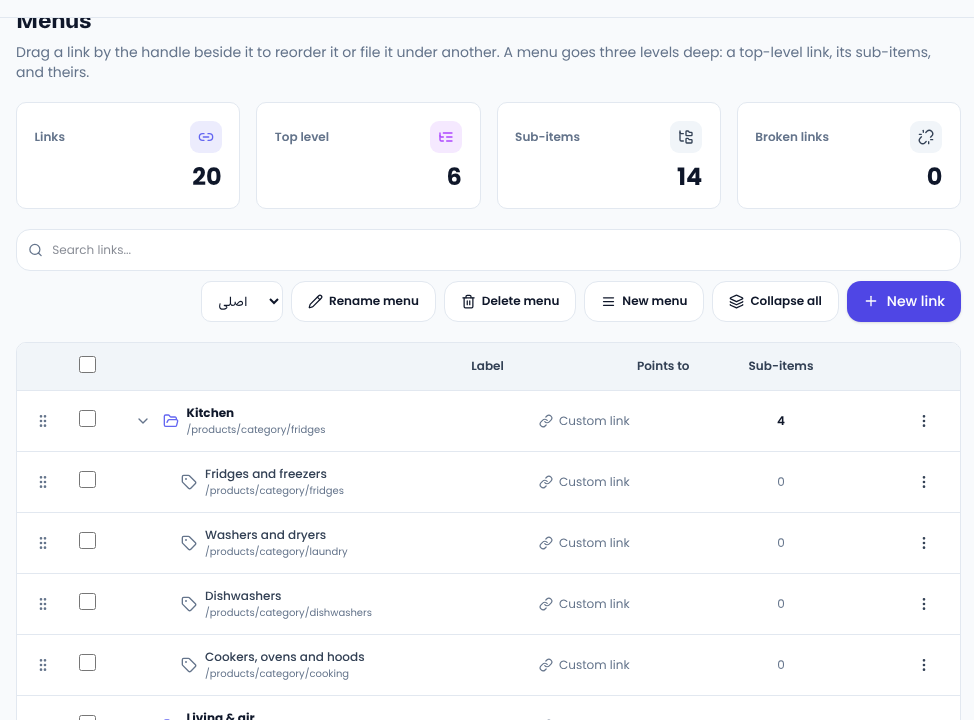
Adding a link to the site menu
Press New link:
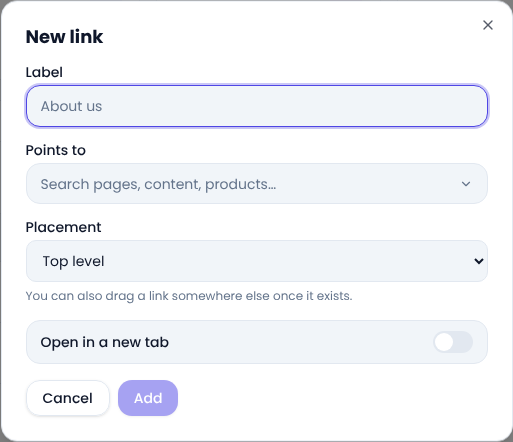
- Label is the text shown in the menu.
- Points to is searchable: pages, posts, the shop's categories and brands, products and your site's own pages are all there. A custom address or a phone number works too.
- Placement puts the link at the top level or under another link.
- Open in a new tab suits links that leave your site.
Submenus and order
Drag a row by its handle to move it or tuck it under another link. A menu goes three levels deep. On desktop, levels two and three open in one drop-down; on mobile all three are shown indented.
Several menus for different places
New menu makes another menu, for the footer or a help page. A menu is drawn wherever a menu block in the builder names it, so point the header and footer at the menu you want from Settings → Appearance → Site-wide sections.
Broken links
When a page goes back to draft, its link is hidden from the menu and returns once the page is published again. The broken links card counts the links that lead nowhere, so you know to fix them.
For menu design principles, Nielsen Norman Group's menu design checklist is worth a read.
Comments
Sign in to leave a comment.
Sign inLoading…