A digital restaurant menu, table QR codes and online orders
A digital menu lets a guest scan the code on the table and see an up-to-date menu with photos and prices, and, if you want, order and pay right there. In Sima you can run a menu only, or also take orders at the table, for takeaway and for delivery.
1. Sections and dishes
Under Restaurant → Menu sections, make sections such as Breakfast, Starters and Mains. A section can have serving hours, breakfast until 11:30 for example; outside them its dishes are shown but cannot be ordered.
Then add dishes under Restaurant → Menu: name, description, photo, labels such as vegetarian, prep time, and at least one size with its price. A dish with two sizes, such as a small and a large pizza, shows a price range in the list.
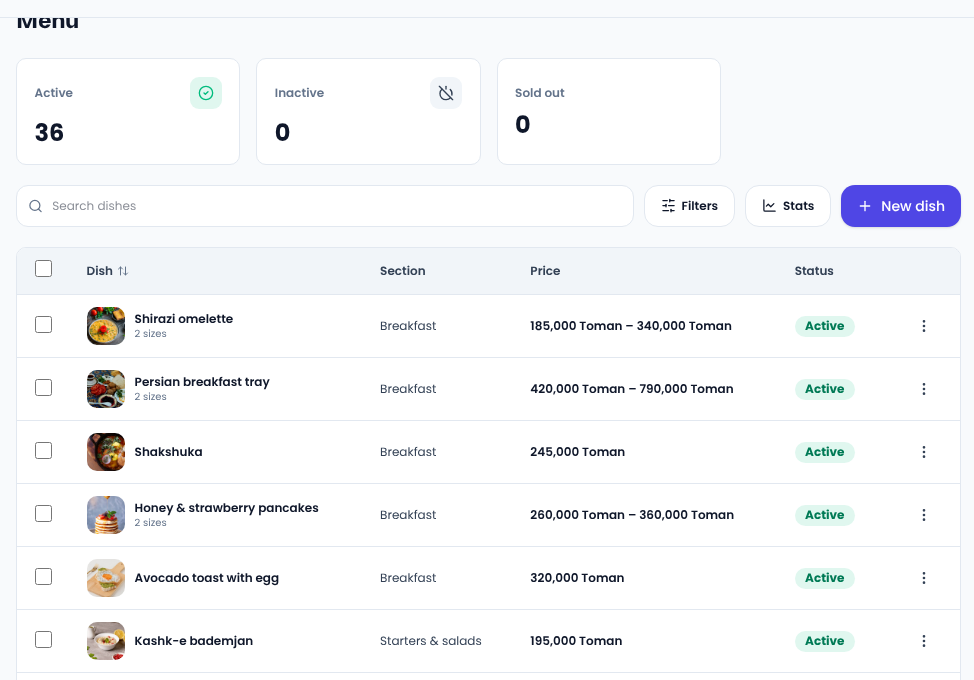
2. Add-ons and set meals
Under Restaurant → Add-ons, make groups such as “Drink” or “Extra sauce”, with a minimum and maximum number of choices and a price per option (zero is fine), and attach them to any dish. A set meal is the same thing: a dish whose groups are required, such as a burger, then “pick a side”, then “pick a drink”.
3. Sold out
When a dish runs out, mark it sold out for today or until further notice in one click. Sold out for today comes back by itself the next morning. A size or an add-on can be sold out too.
4. Tables and QR codes
Under Restaurant → Tables, add tables with a name and an area (such as the hall or the garden) and press Print codes for a sheet of codes. Each table's code carries an unguessable token, so nobody can change a number to order as another table.
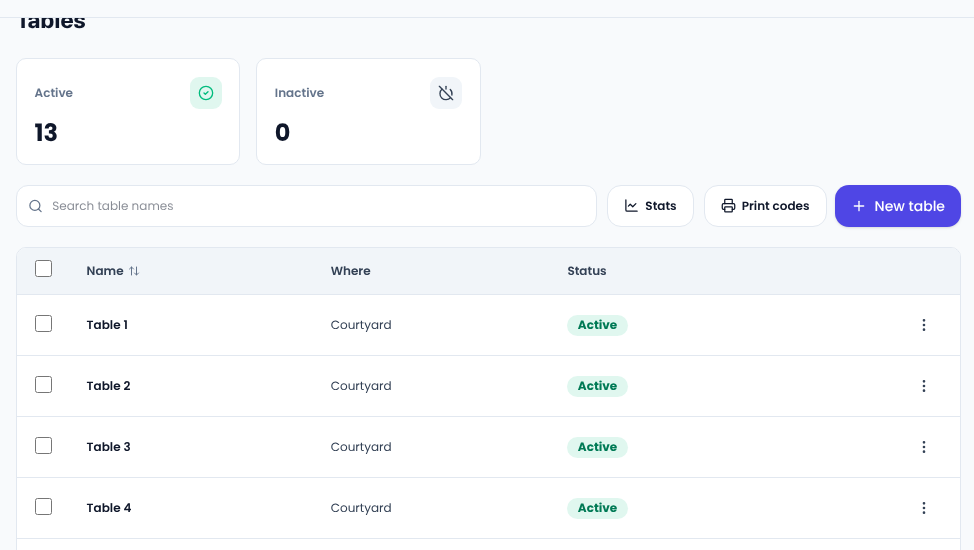
A guest who scanned a table's code can call the staff from the menu page: for help, the bill or a printed menu. This works even with online ordering switched off.
5. Opening hours, pausing and delivery areas
Under Restaurant → Opening hours, set each day's hours and your days off. In a rush, Pause 15 min or longer stops new orders for a while; they open again on their own. You can also let guests order for a later time.
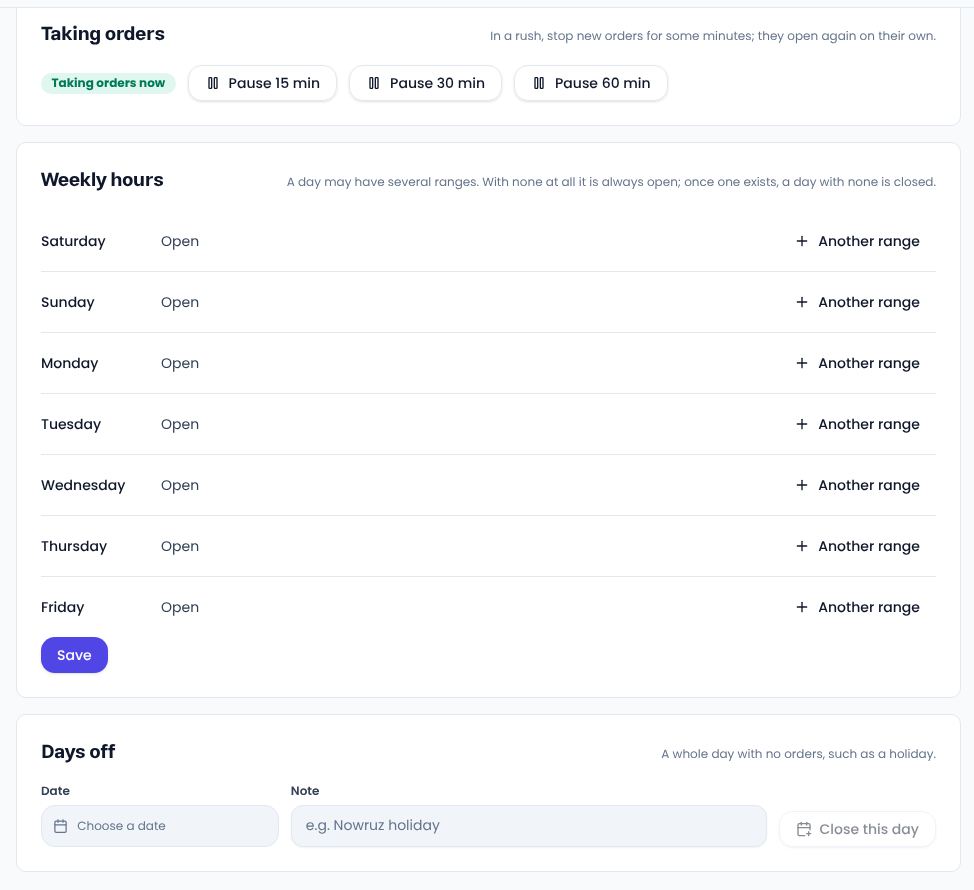
For delivery, give each area under Delivery areas a fee, a minimum order and an estimated time.
6. The kitchen
Restaurant → Kitchen shows paid orders without reloading, in columns for new, preparing, ready and out for delivery. Turn on the new-order bell and each order arrives with a sound. Accepting an order sets its ready time, which the guest sees on their tracking page. A rejected or cancelled order is refunded in full to the guest's wallet.
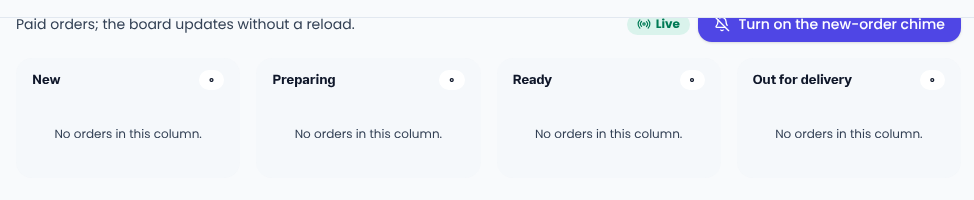
A menu only, no ordering
If you only want a digital menu, switch online ordering off. The menu shows prices and offers no basket. The Menu block can go on any page, whole or just a few sections.
For how a good menu is laid out, see Wikipedia on menu engineering.
Comments
Sign in to leave a comment.
Sign inLoading…