Product variants: colour, size and a price for each
Product variants are one item sold in several versions: a shirt in several sizes, a fridge in two colours, a perfume in several volumes. Instead of a separate product for each version, you make one product with several variants. The shopper picks a version on the product page, and each version has its own price and stock.
Where product variants live
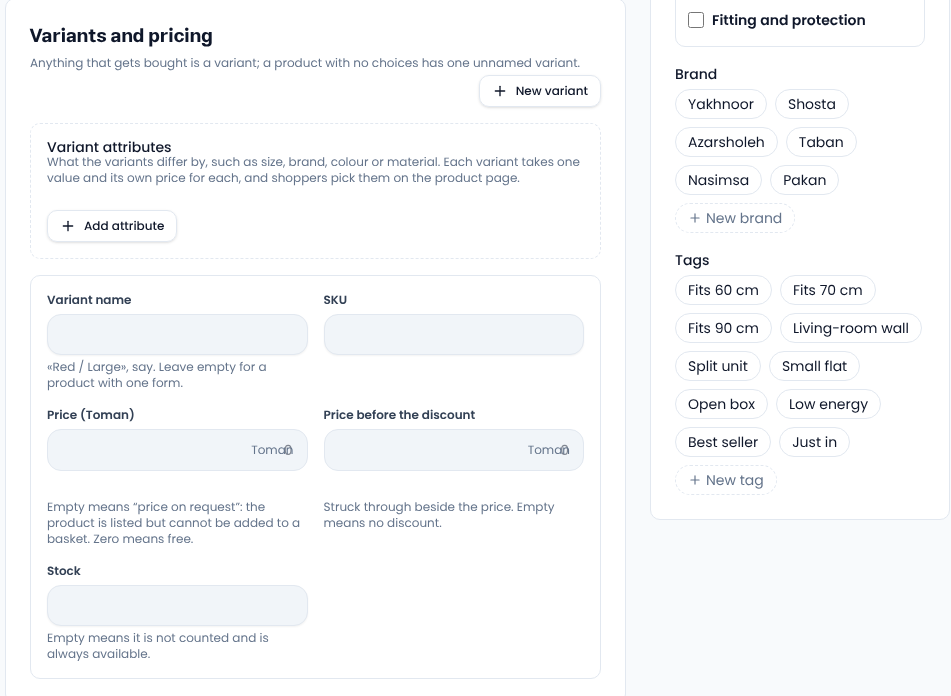
Open the product (see “How to add a product to your online store”) and go to Variants and pricing. Every product has at least one variant; a product with no choices has one unnamed variant.
1. Define the attributes
Under Variant attributes, press Add attribute and name it, for example “Colour” or “Size”. If the item differs in two ways, add two attributes.
2. Add a variant for each version
New variant adds a row. In each row:
- Give each attribute its value, for example colour “Black”.
- Variant name is what the shopper sees, such as “Black / Large”.
- SKU is for your warehouse and accounts, and is optional.
- Enter the Price and, for a sale, the Price before the discount.
- Enter the Stock; empty means always available.
Remove a variant you no longer sell and save the product.
3. Keep specifications separate
Variants are for what the shopper chooses. Facts that are the same for every version, such as dimensions, capacity or energy label, go under Specifications further down. They appear in the product's specification table and when shoppers compare products.
Common questions
What happens when one version sells out? When a variant's stock reaches zero, shoppers see that version as out of stock while the others stay on sale.
Does each version get its own pictures? Pictures are in the product's gallery and shared by every version; add a picture of each colour to the gallery.
For the term itself, see Wikipedia on stock keeping units.
Comments
Sign in to leave a comment.
Sign inLoading…