Building pages with the page builder and live editing
Every site has a few fixed pages: About, Contact, Terms, FAQ. To build a page in Sima you have two ways: plain text for a page such as Terms, and the block page builder for a page that has to look good.
The page list
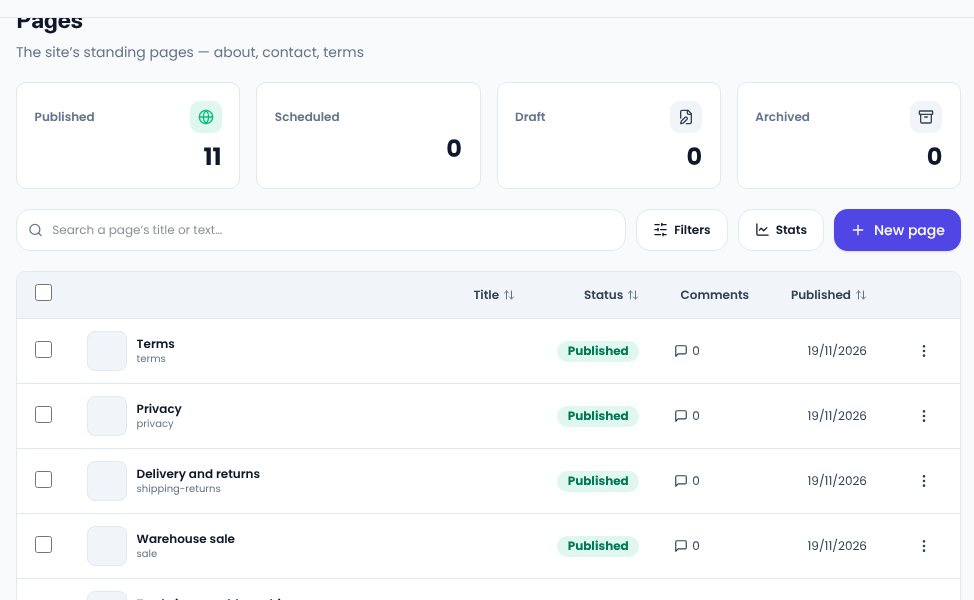
Content → Pages lists every fixed page with its status and publication date. The page marked as the front page is the one served at your site's main address.
A plain text page
Press New page, write the title and text, and press Publish. The editor has headings, lists, pictures, video and links, and the SEO panel below scores the page. For Terms or Privacy that is all you need.
The block page builder
For an About page or a front page, open the builder. The page is in front of you as a visitor sees it, with the tools beside it:
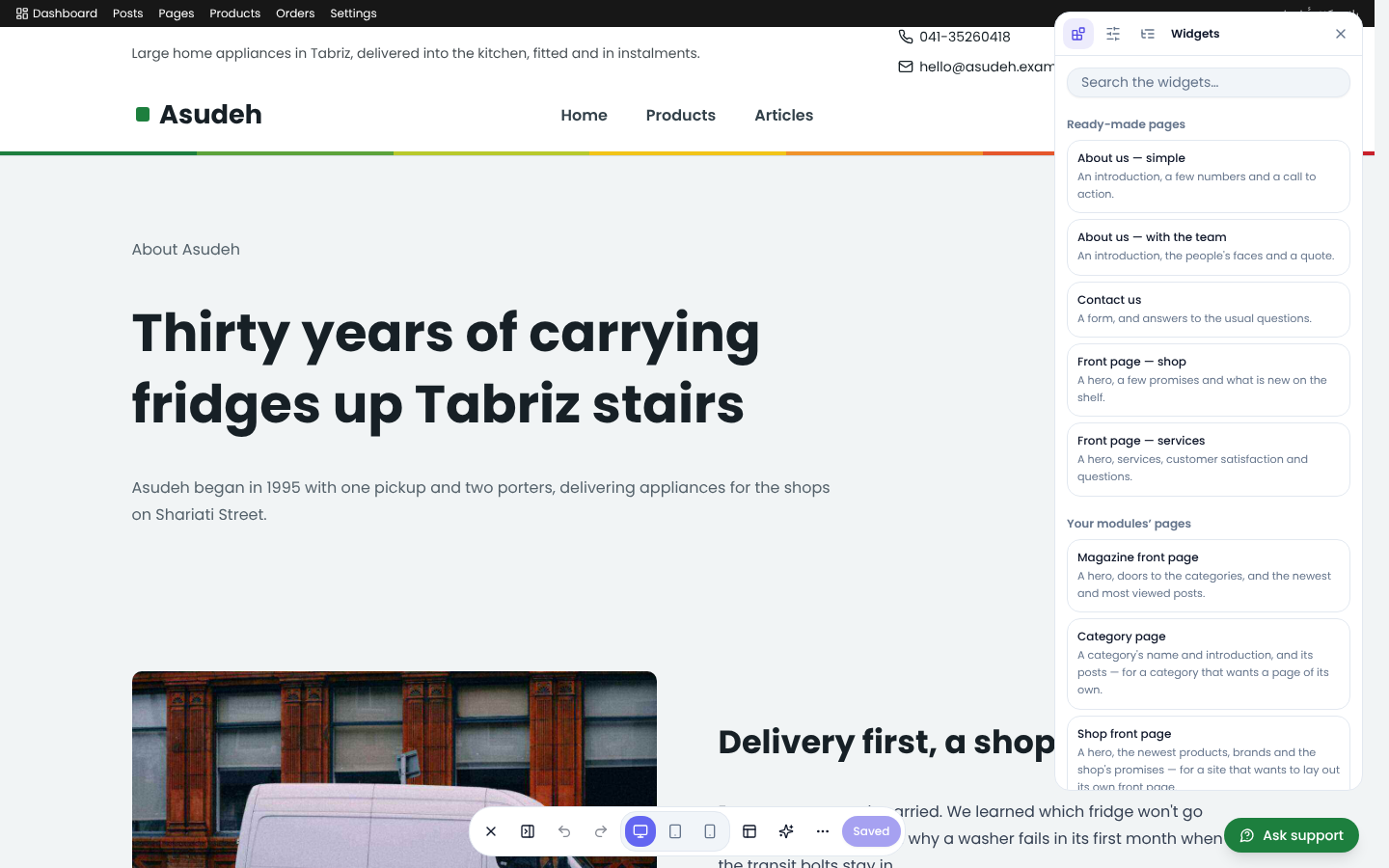
- Ready-made pages: pick “About us”, “Contact us” or “Front page — shop” and only change the words and pictures.
- Widgets: add headings, text, pictures, buttons, forms, products, FAQs and more, and drag them into place.
- The bottom bar: undo and redo, desktop, tablet and mobile views, and Save.
Live editing
When you are signed in as a manager and open a page of your own site, you see a live edit button. Press it and that page turns into the builder in place, without going to the panel. Readers never see the button and their page does not get any heavier.
A page in two languages
If your site is bilingual, switch the panel's language and edit the same page in the second language. Each language keeps its own words, and a language with none yet shows the primary language's page.
Common questions
I built a page but it is not in the menu. Pages are not added to a menu on their own; see “Building your site's menu”.
Can I go back from the builder to plain text? Yes, but the page's block layout is cleared.
For an About page that earns trust, see Google's guide to helpful content.
Comments
Sign in to leave a comment.
Sign inLoading…