Online booking: services, staff and working hours
Online booking lets a customer pick a service, a person and a time without phoning: for a clinic, a salon, a consultant, a studio or a restaurant. In Sima you need three things: your services, the people who provide them and each one's working hours. The site works out the rest.
1. Services
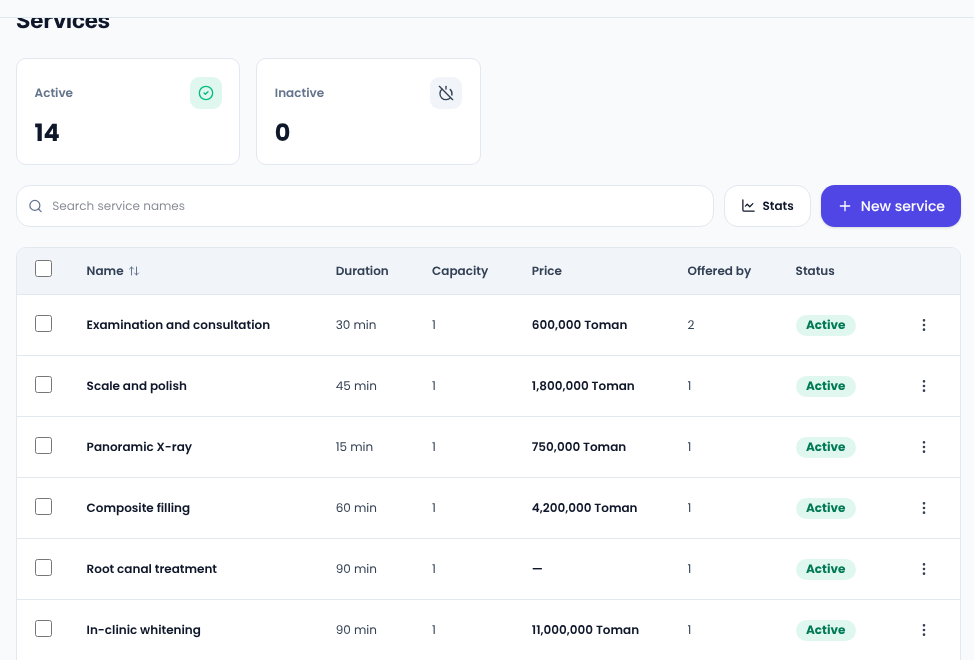
Bookings → Services lists your services with duration, capacity and price. Press New service.
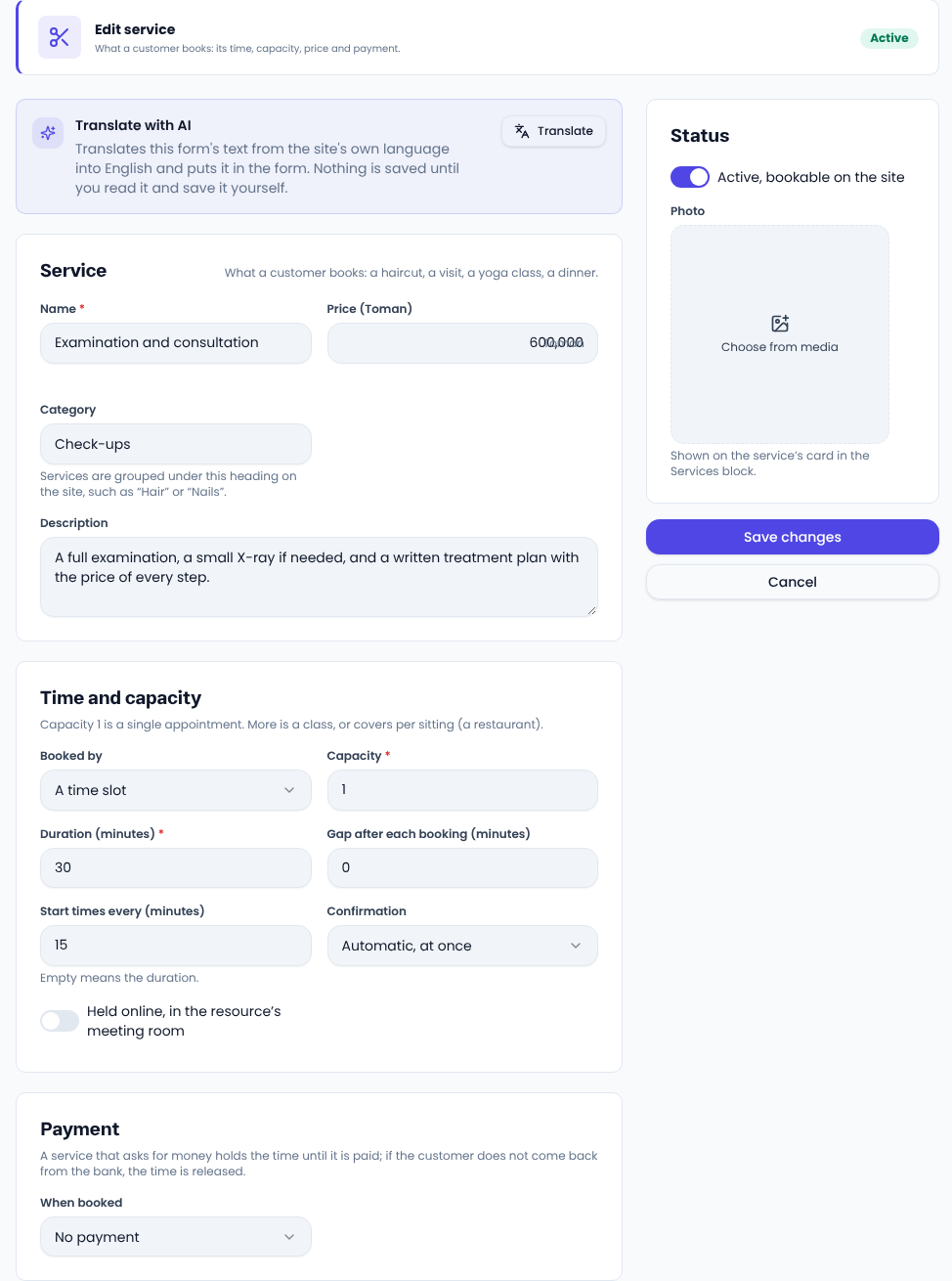
- Name, price and category: services are grouped on the site under their category, such as “Check-ups” or “Cosmetic”.
- Duration and the gap after each booking (to get the room ready) make up each slot.
- Capacity 1 is a single appointment. More is a class or covers at a restaurant, and each time shows how many places are left.
- Start times every says how often slots begin; empty means the duration.
- Confirmation: automatic at once, or waiting for you.
- Held online: for an online consultation or class; the meeting link is given to the customer once the booking is confirmed.
- Payment: none, a deposit per place, or the full price.
- Questions before booking: such as “Do you take a blood thinner?”. Each is free text, yes or no, or one of several options, and can be required. Only the bookings desk sees the answers.
2. Staff and working hours
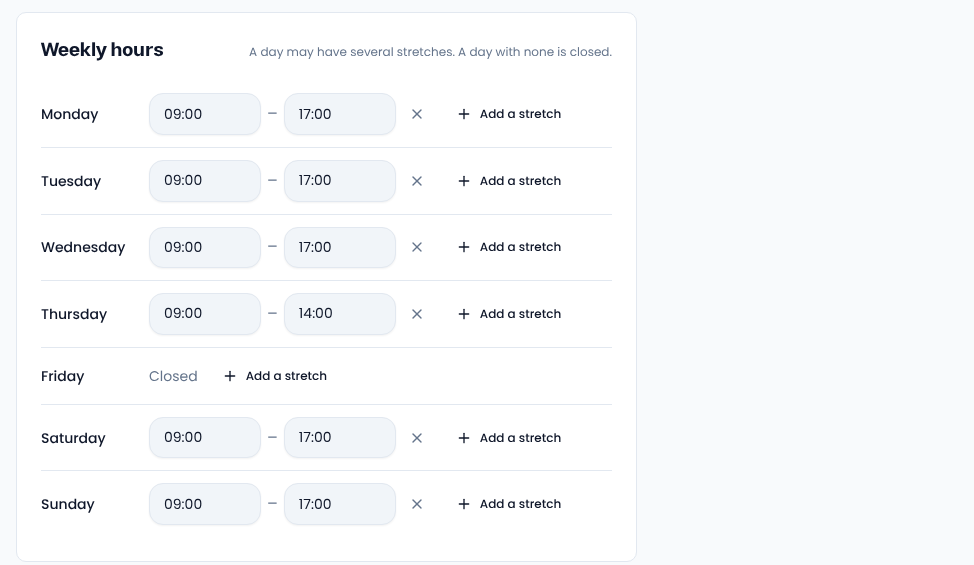
Under Bookings → Staff and resources, add each doctor, stylist, consultant or room: name, title, a short introduction and a photo. Then set their weekly hours. A day can have several stretches (morning and evening), and a day with none is closed. At the bottom of the same form, tick the services they offer.
3. Days off
Record holidays and leave under Bookings → Days off, and no slots are offered on those days.
Bookings
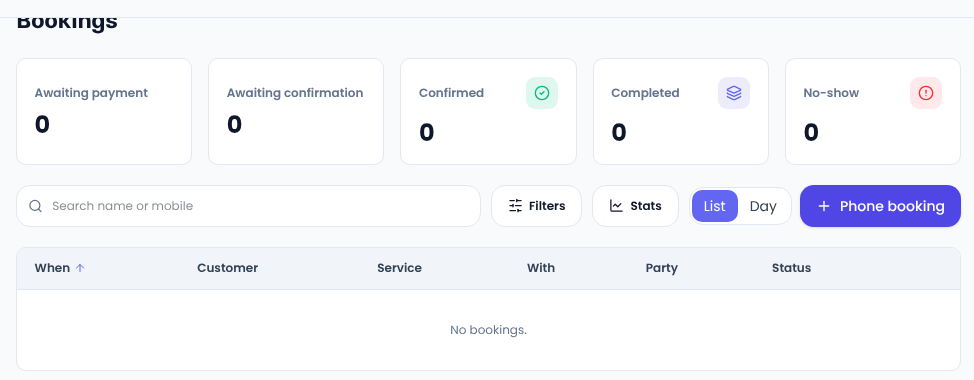
Bookings → Bookings shows every booking as a list or day by day, with counts awaiting payment, awaiting confirmation, confirmed, done and no-show. Phone booking books a customer who called by their mobile number; it asks no payment.
The customer's side
- On your site the customer picks the service, the person (or “anyone”) and the time, and signs in with their mobile.
- They see their bookings in their account and can cancel until the cut-off you set. Cancelling frees the place, and anything paid goes back to their wallet.
- They are sent booked, confirmed and cancelled notices, and a reminder before the visit. You set how many hours before; zero turns it off.
Common questions
A customer paid a deposit but did not come back from the bank? The place is held for a while. If the payment arrives later, the money stays in their wallet and nothing is lost.
Does it work for a hotel or guest house? Yes: set Booked by to nights and the customer picks nights on a calendar.
To cut no-shows, Wikipedia on no-shows is a useful read.
Comments
Sign in to leave a comment.
Sign inLoading…