The media library: pictures, files and folders
20 Nov 20262 min read3 views
Every picture and file on your site comes from the media library: product pictures, the logo, post images or a PDF catalogue. Wherever the panel needs a file, you pick it from this library or upload it into it right there.
The media library
Content → Media shows every file. At the top is how much space is used, split into files, database, backups and mail.
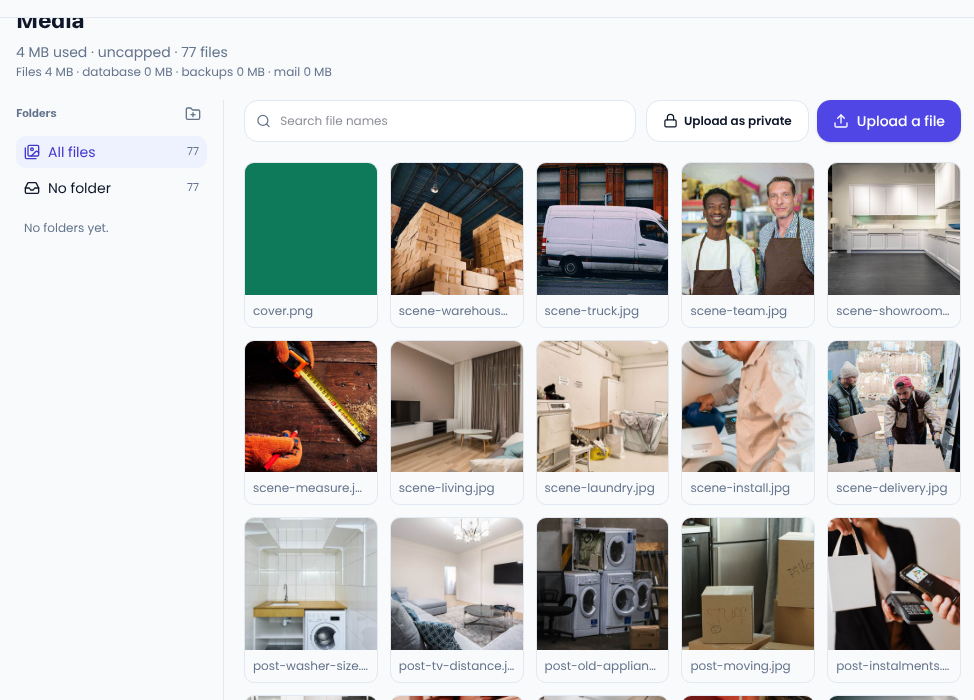
Uploading
- Upload a file puts a file up for use on the site.
- Upload as private is for a file with no public address, such as a product's download that only a buyer receives after paying.
- Each picture gets several sizes made automatically, so a phone downloads a smaller one and the page opens faster. The original is never touched.
Pictures, PDFs, Word, Excel and PowerPoint files, archives, audio, video, fonts and subtitles are accepted. HTML and SVG files are refused to keep your site safe.
Folders
Use the button beside Folders to make a folder and sort files, for example “Products”, “Blog” and “Logos”. All files always shows everything.
Tips for pictures
- Give the file a meaningful name before uploading, such as fridge-side-by-side.jpg; it helps search.
- Write alternative text (alt) when you place a picture in text.
- A huge picture is not needed; 1600 to 2000 pixels wide is enough for most places.
For pictures in search, see Google's image guidelines.
Comments
Sign in to leave a comment.
Sign inLoading…