Logo, site colours, header and footer
Your logo and site colours are the first thing a visitor sees. In Sima you set them once on the Appearance screen and they reach every page, button and form.
Your site's brand
Open Settings → Appearance and its brand section.
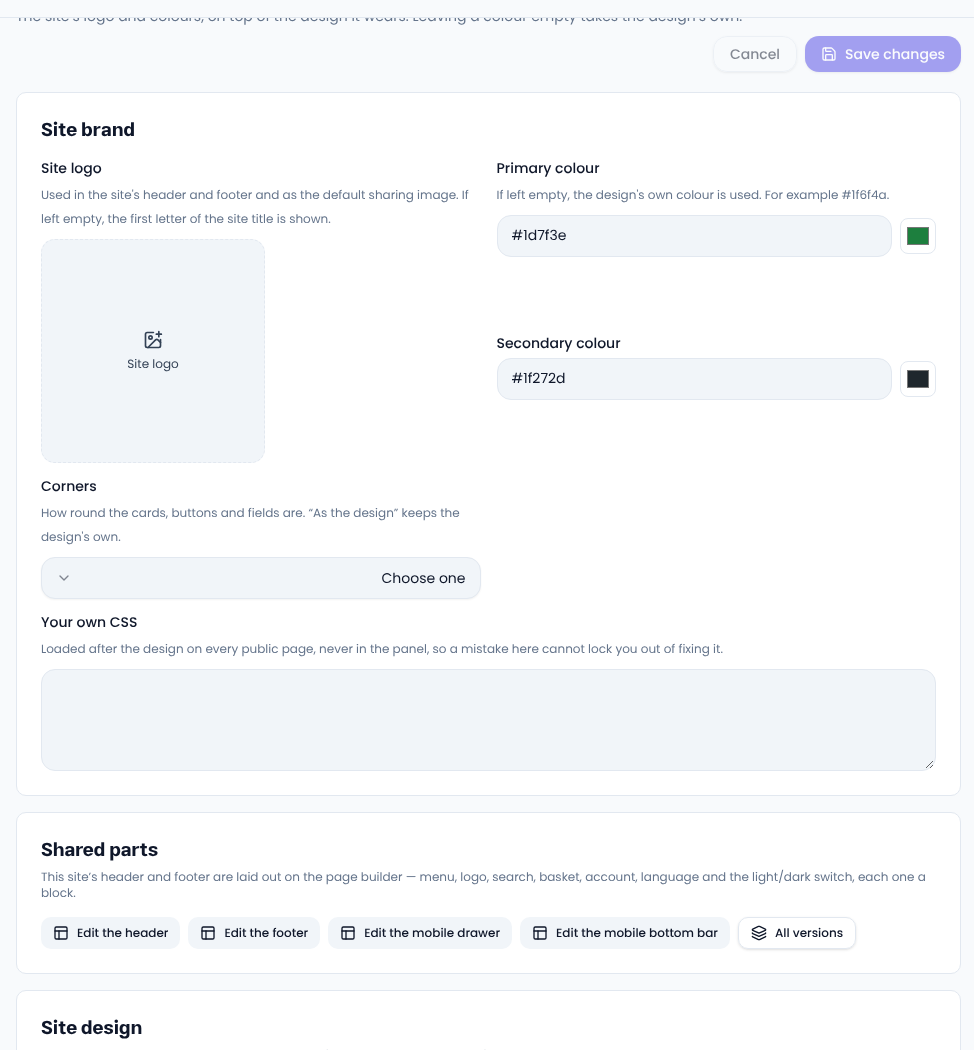
- Pick the Site logo from the media library. It appears in the header and footer and becomes the default sharing picture. Left empty, the first letter of your site's name is shown.
- Enter the Primary colour and Secondary colour as a hex code (such as #1d7f3e) or pick them. Empty means the design's own colour.
- Corners sets how rounded cards, buttons and fields are.
- Custom CSS is for a small change of your own. It loads on the public pages only, never in the panel, so a mistake in it never locks you out of fixing it.
Changing your design keeps your colours and logo.
Header, footer and mobile menu
Under Site-wide sections are buttons to edit the header, the footer, the mobile drawer menu and the mobile bottom bar. Each opens in the same page builder: the menu, the logo, search, basket, account, language and the light and dark switch are each a block. All versions shows several ready-made layouts.
Changing your design
Choose a design at the bottom of the screen lists other designs. A design is the template, header, footer and colours. You can bring only the look, or tick its pages and sample content too.
Common questions
Where do the colours show? On buttons, links, badges and wherever the design uses the brand colour.
To choose colours that keep text readable, use WebAIM's contrast checker.
Comments
Sign in to leave a comment.
Sign inLoading…