Importing products from Excel
20 Nov 20262 min read4 views
Entering hundreds of products one by one takes a long time. Importing products from Excel does it in one go, and it is also the way to update the price and stock of every product at once.
Import products from Excel
Open Products → Product import and the Excel tab.
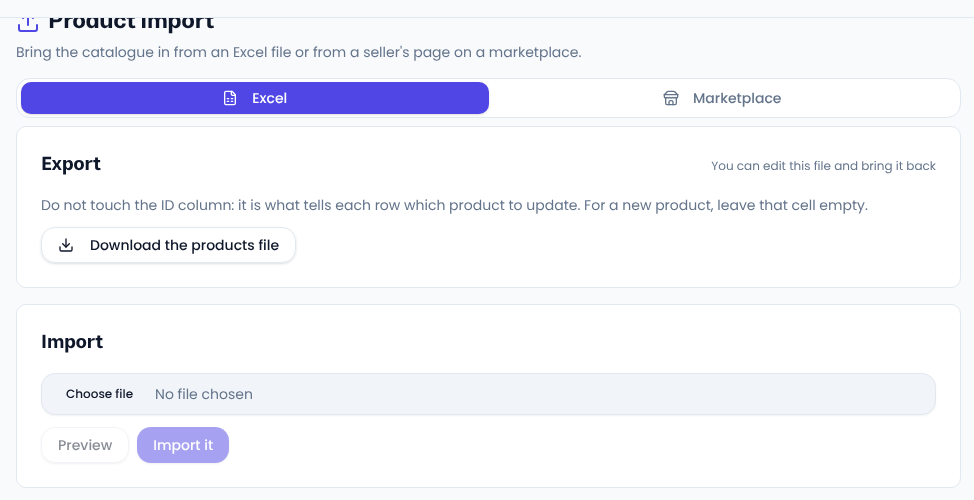
- Export: Download the products file gives you a file with every product you have. For an empty shop it is still the right template.
- Edit: the columns are product name, slug, SKU, price, price before the discount, stock, status (published or draft), short introduction and description. For a new product add a row and leave the ID cell empty.
- Preview: choose the file and press Preview to see how many products will be created, how many updated and which rows are refused.
- Import: if the preview looks right, press Import it.
About the file
- Do not touch the ID column: it tells each row which product to update. An ID that matches no product is reported with its row number and never creates a new product.
- An update changes only the columns in the file. Pictures, gallery, specifications and categories stay as they were.
- If a product was edited in the panel after you downloaded the file, it is left alone and reported as a conflict, so nobody's work is lost.
- A file takes up to 10,000 rows.
Common questions
Do pictures come in from the file? No, the file carries text and numbers; add pictures on each product page.
What if I upload the same file twice? Rows that have not changed count as unchanged, and no product is created twice.
For keeping a spreadsheet tidy before import, see Microsoft's Excel help.
Comments
Sign in to leave a comment.
Sign inLoading…