AI support chat: automatic answers from your own site's content
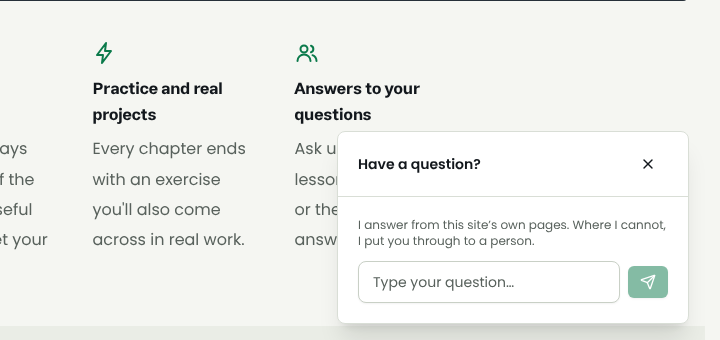
The AI support chat does two jobs: a Have a question? bubble in the corner of your site that answers visitors, and a Suggested reply button on tickets that drafts an answer for your support staff. Its most important rule is that it makes nothing up: every answer comes from your site's published content and your knowledge base, and where it cannot find the answer it says it does not know.
1. Where the answerer reads from
Under Comments and support → Answerer training, the Sources tab shows what answers are built from: first your private knowledge base, then your site's published content; the exact list for your site is shown there. Each source is updated the moment you save its item.
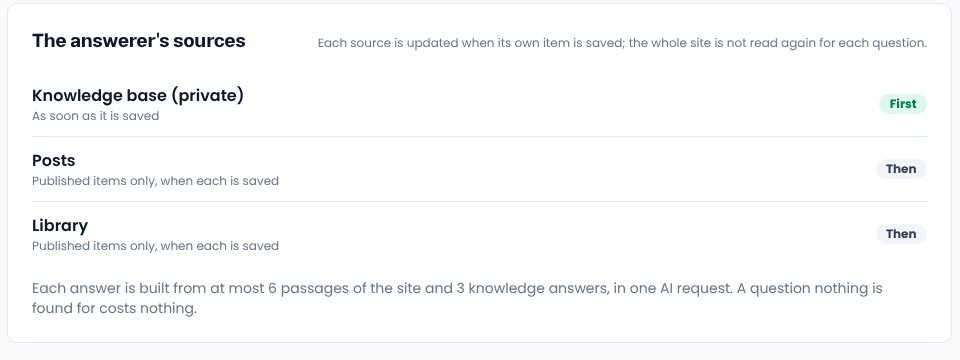
The answerer has no access to personal data. It says nothing about anyone's order, balance or account, even if someone types an order number into the chat; for those questions it asks the visitor to sign in.
2. The knowledge base
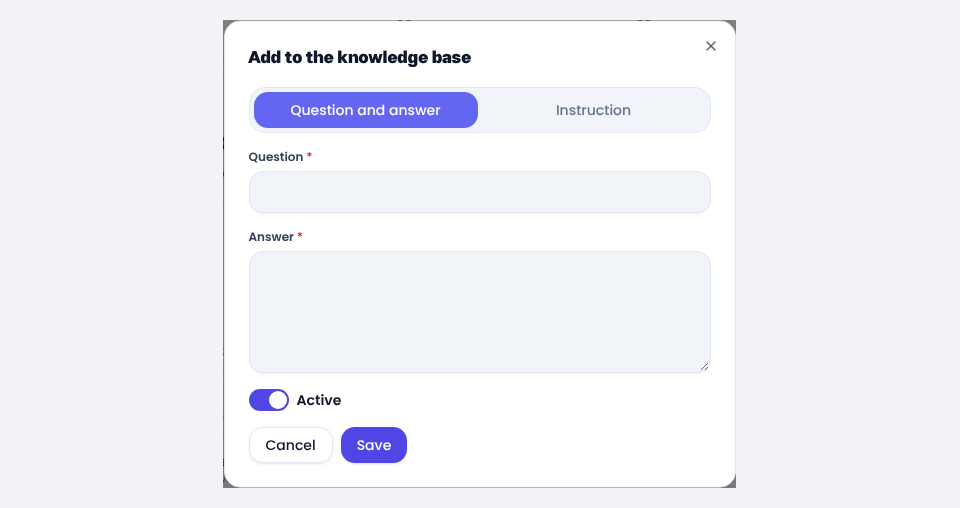
Things you have not written on the site but the answerer should know, such as how long course access lasts or your return terms, go into the Knowledge base with Add. There are two kinds: a Question and answer, and an Instruction, a sentence about how to answer, such as "answer briefly and politely". Where the knowledge base disagrees with the site's content, the knowledge base wins.
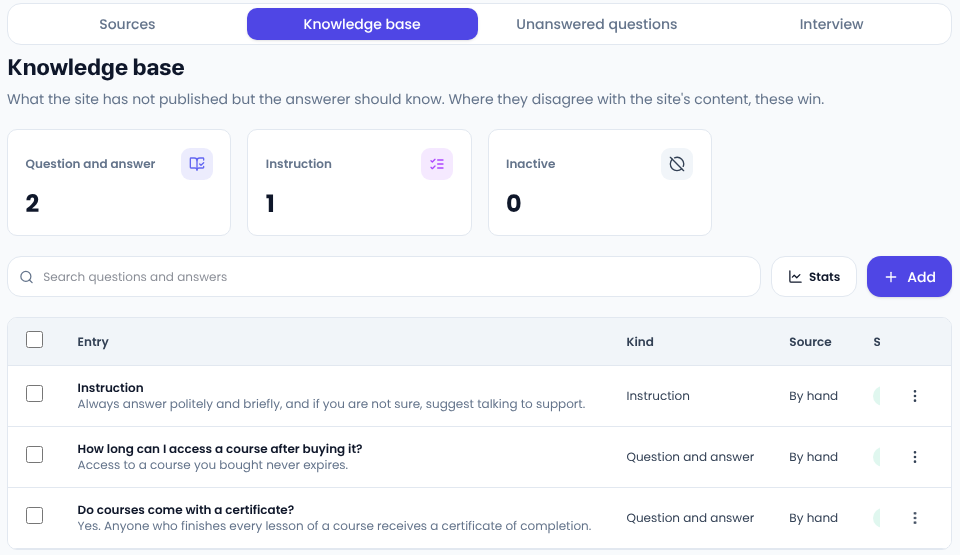
The knowledge base belongs to your site alone; it never shows in the site search or at any public address. Any entry can be switched off for a while.
3. Unanswered questions
Every question the answerer could not answer, or where the visitor asked for a person, lands under Unanswered questions. A repeated question counts up on the same row, so the frequent ones stand out quickly. Answering one adds it to the knowledge base, and from then on the answerer knows it.
If you are just starting, open the Interview tab and click Suggest questions. The AI suggests the questions customers usually ask, based on your type of business and your main pages, and you only write the answers.
4. Handing over to support
When the answerer does not know, it offers to send the question to support. If the visitor is signed in, the conversation becomes a support ticket and your staff answer it under Support tickets.
5. Suggested replies on tickets
On every ticket, Suggested reply puts a draft built from the same sources into the reply box. Nothing is sent on its own; your colleague reads it, edits it if needed and sends it themselves. If their reply was a good one, Save to knowledge keeps it for next time.
6. Switching each part off
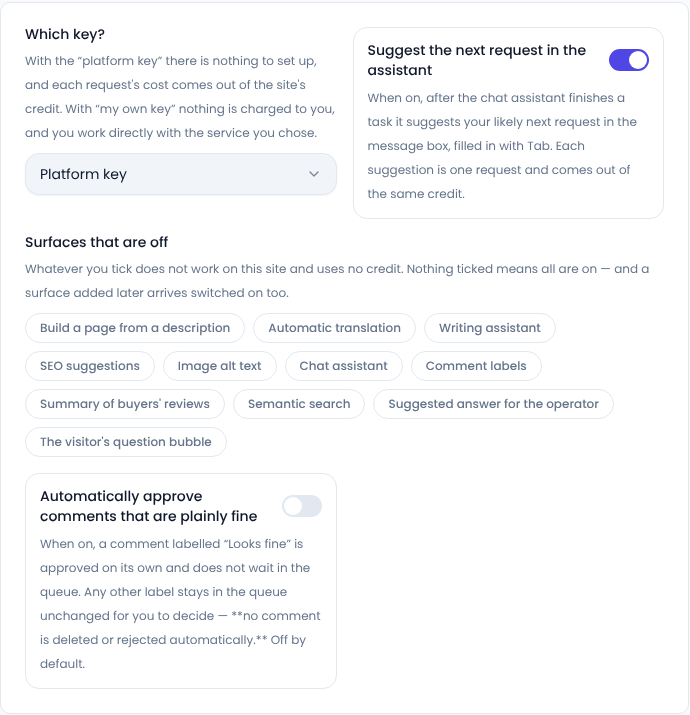
Under Settings → General settings → AI assistant, in Surfaces that are off, you can switch off The visitor's question bubble or Suggested answer for the operator on its own; for example, keep the ticket drafts and remove the bubble. A part that is off uses no credit.
Common questions
How is it charged?
Each answer is one AI request, and with the platform key it comes out of your site's credit. A question for which nothing at all is found costs nothing.
Can it say something wrong?
It answers only from your content, so an outdated page gives an outdated answer. Keep your pages current and put the important facts in the knowledge base.
Comments
Sign in to leave a comment.
Sign inLoading…